

Step-by-Step Instructions to Control Your Philips Hue with the SURE Universal Remote
SURE Universal supports Philips Hue lights. Below are simple instructions on how to add the remote for Philips Hue and how to use the remote once it is added.
You can read the step-by-step instructions below or watch a short training video:
Before you start please make certain that your Philips Hue lights are turned on and that the SURE Universal remote is using the same WiFi network as the Philips Hue lights.
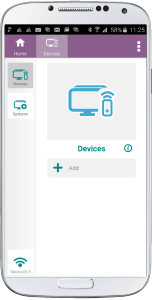
- Select Devices from the top navigation bar.
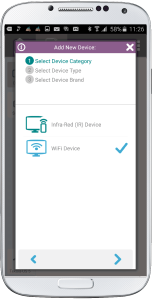
- Select WiFi devices and click the right arrow.
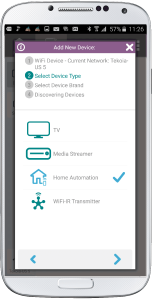
- Select Home Automation and click the right arrow
- On the next screen you will see Philips Hue. Click the right arrow.
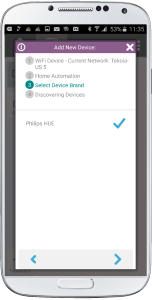
- The app will start to discover the device
Make certain your phone and your Philips Hue are on the same WiFi connection.
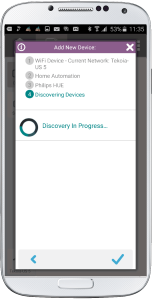
- Once discovered select Philips Hue and the click the check at the bottom of the screen.
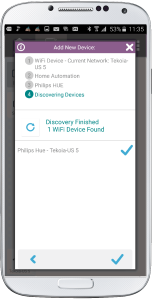
- Your Philips Hue has now been added to the app. Click the button.
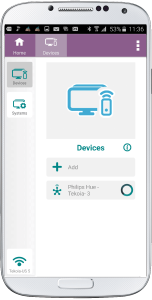
- If the app has discovered the lights you will see them as below.
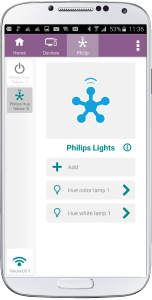
- If not, click Add and the app will search for the Philips Hue lights.
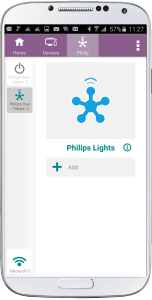
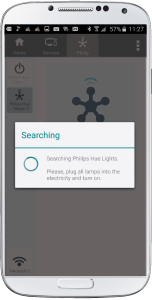
- When they are discovered they will be seen as below
- Click each of the buttons and you will find all the Philips Hue light remote functions.
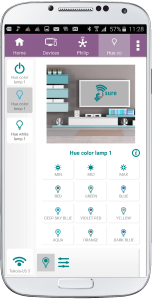
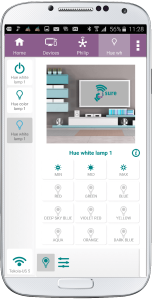
- The brightness and color can be found on the second panel.
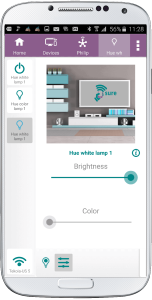
Now set your lights to your mood and have a lovely evening!
Social
关注我们