
Step-By-Step Instructions to Create a Custom Panel on Your SURE Universal Remote
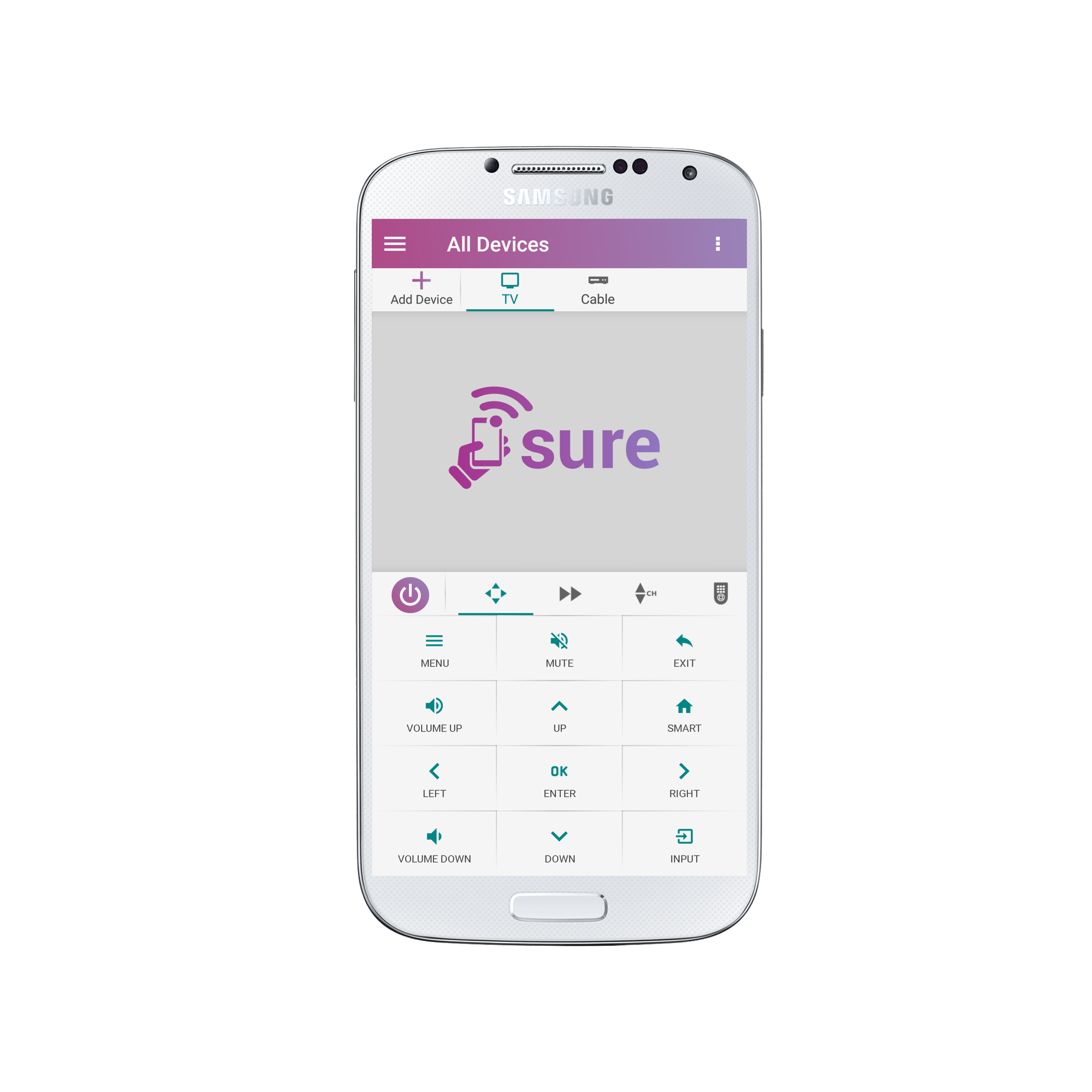
1. Open the remote for which you wish to create a custom panel and tap the 3 vertical dots in the top right corner of the screen.
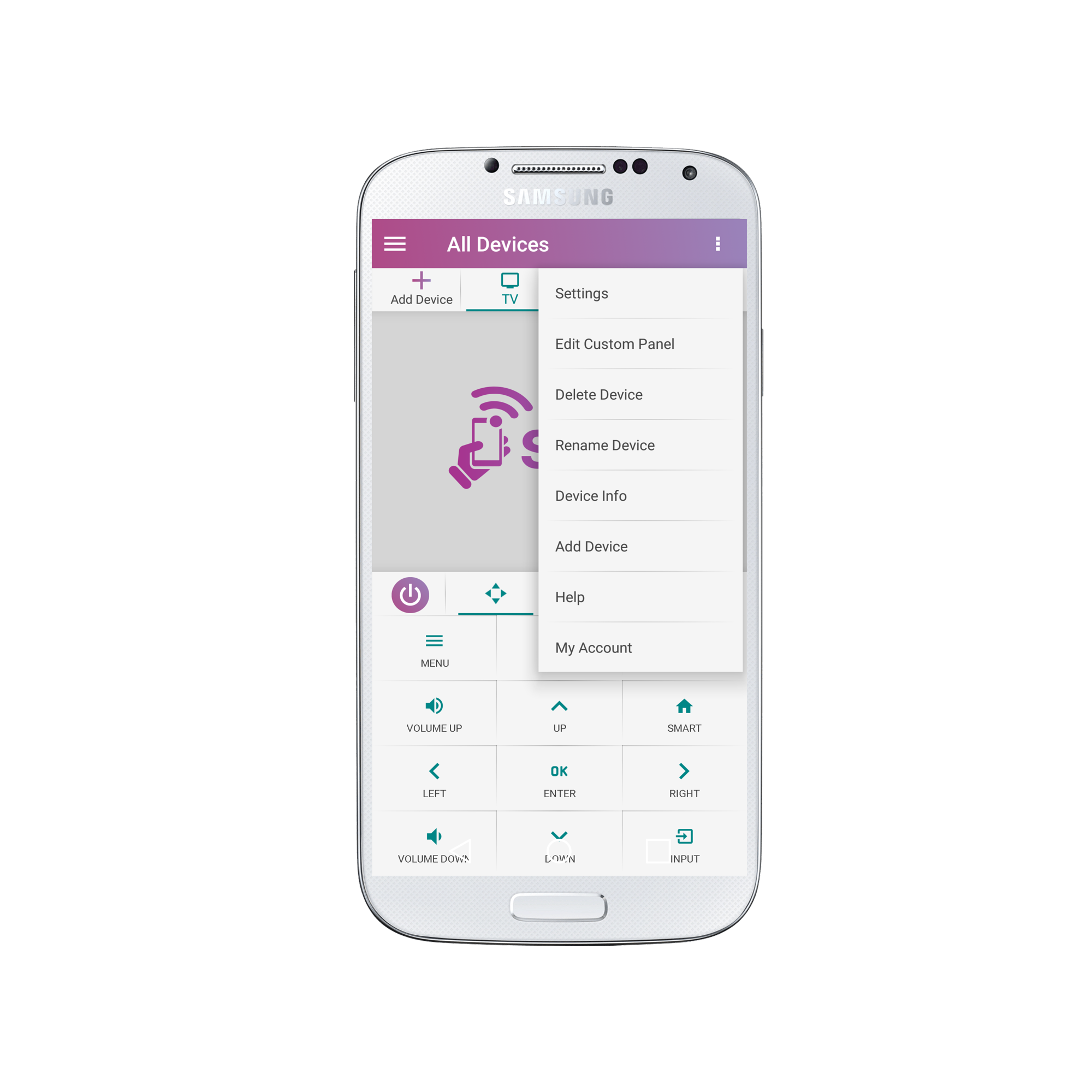
2. Select “Edit Custom Panel”
3. Drag your desired buttons to the top panel.
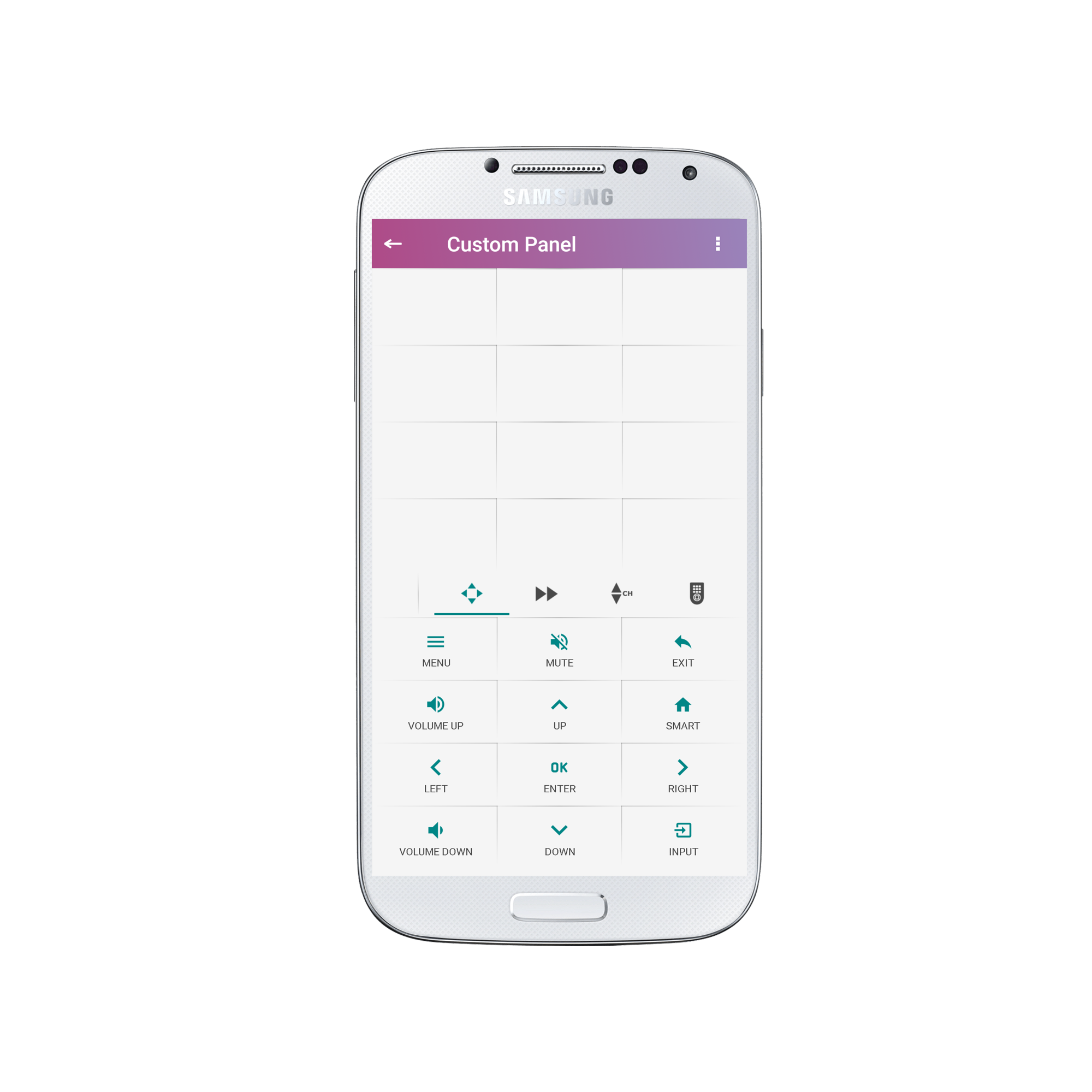
4. Make sure to scroll though all of the panels to find your most used buttons.
Once you have added all the buttons you need, click on the arrow in the top left of the screen.
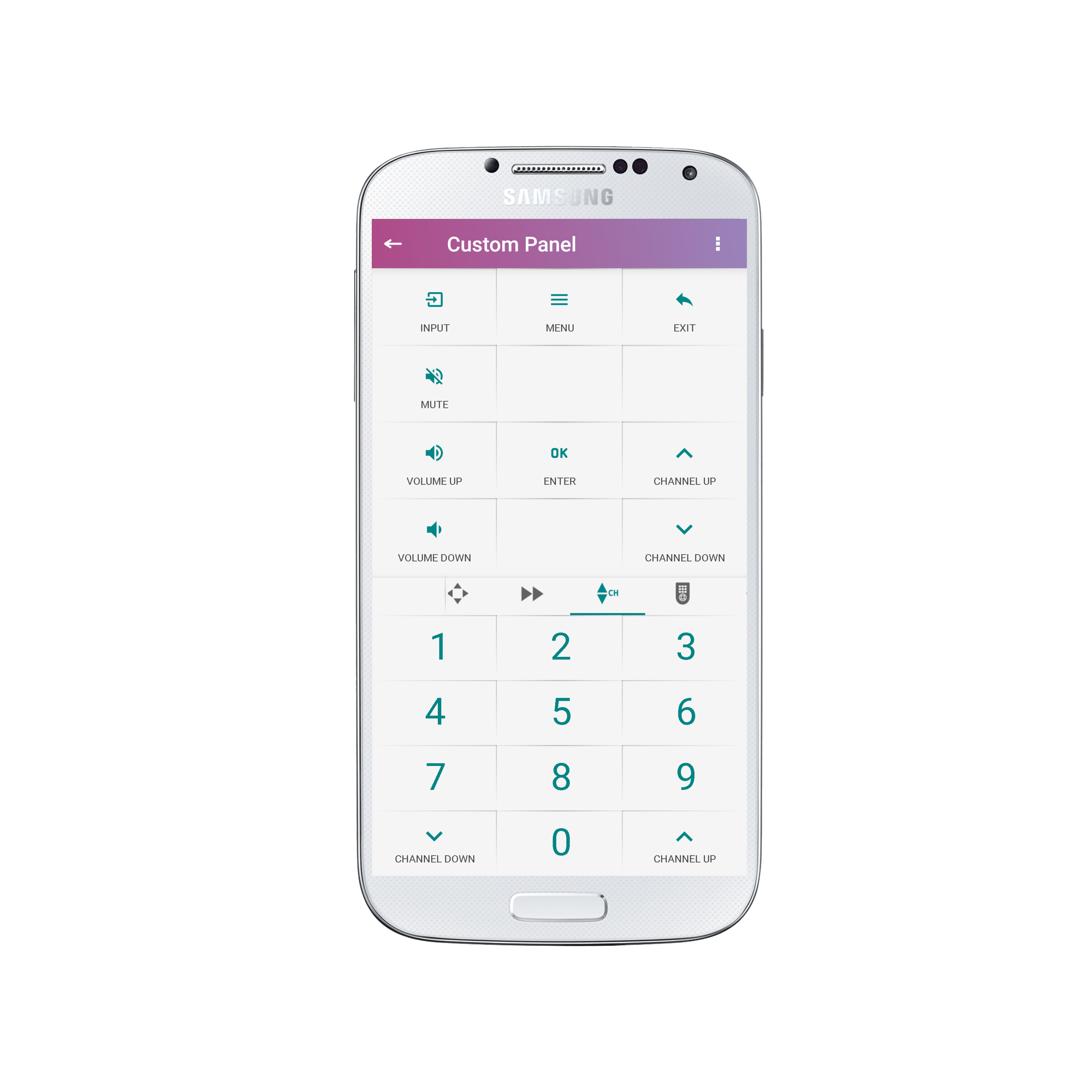
5. You can now access your custom panel by clicking on the “Star” icon.

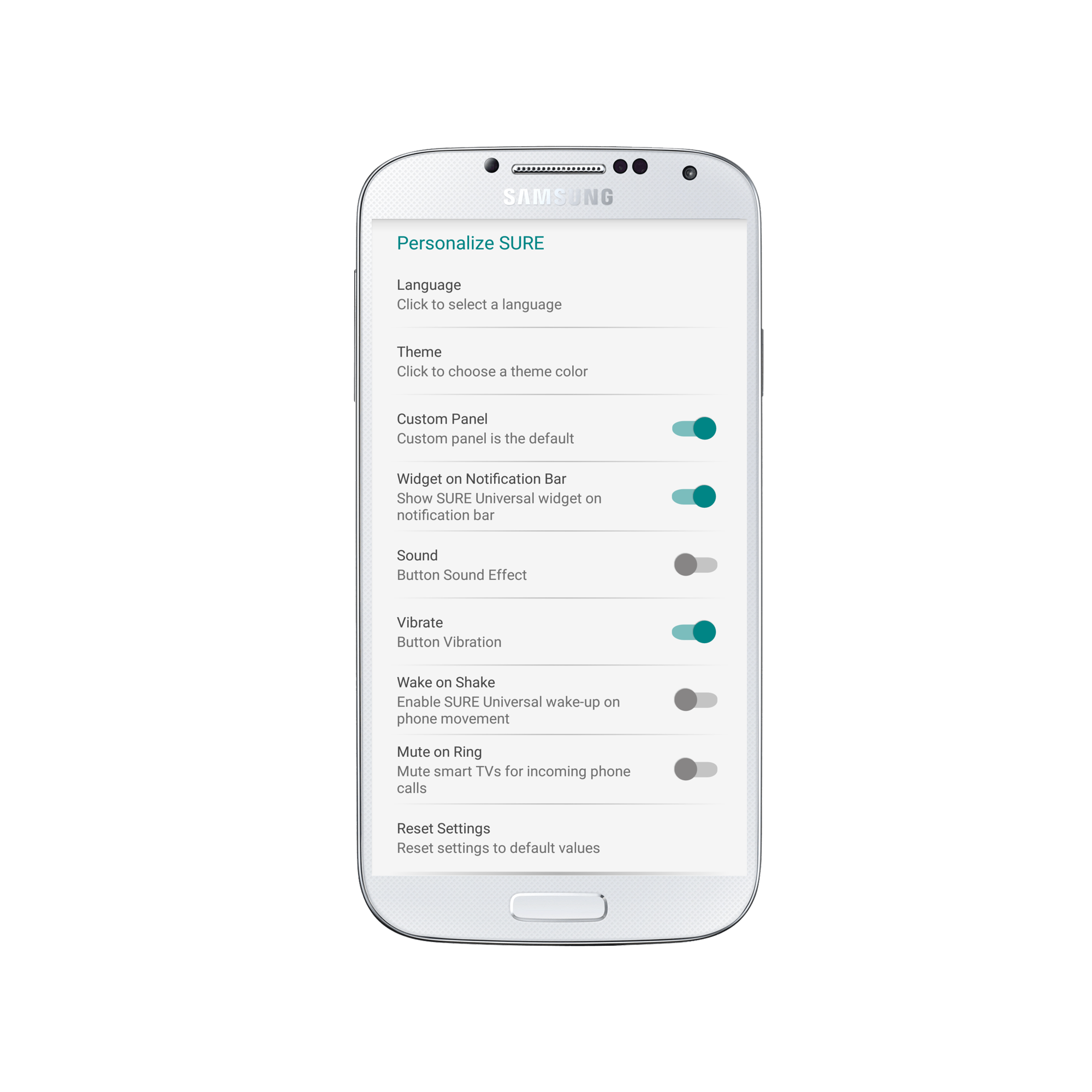
To set your custom panel as the default view, go to the app settings and select “Custom Panel” so that the toggle turns blue.
You may find the full instructions here.
Enjoy using your custom panels!?
Social
关注我们