
Step-by-Step Instructions to Add Your Air Conditioner to SURE Universal Remote
1. From the “All Devices” screen tap the “+” symbol in the upper left of the screen

2. Select Traditional Remote (IR)
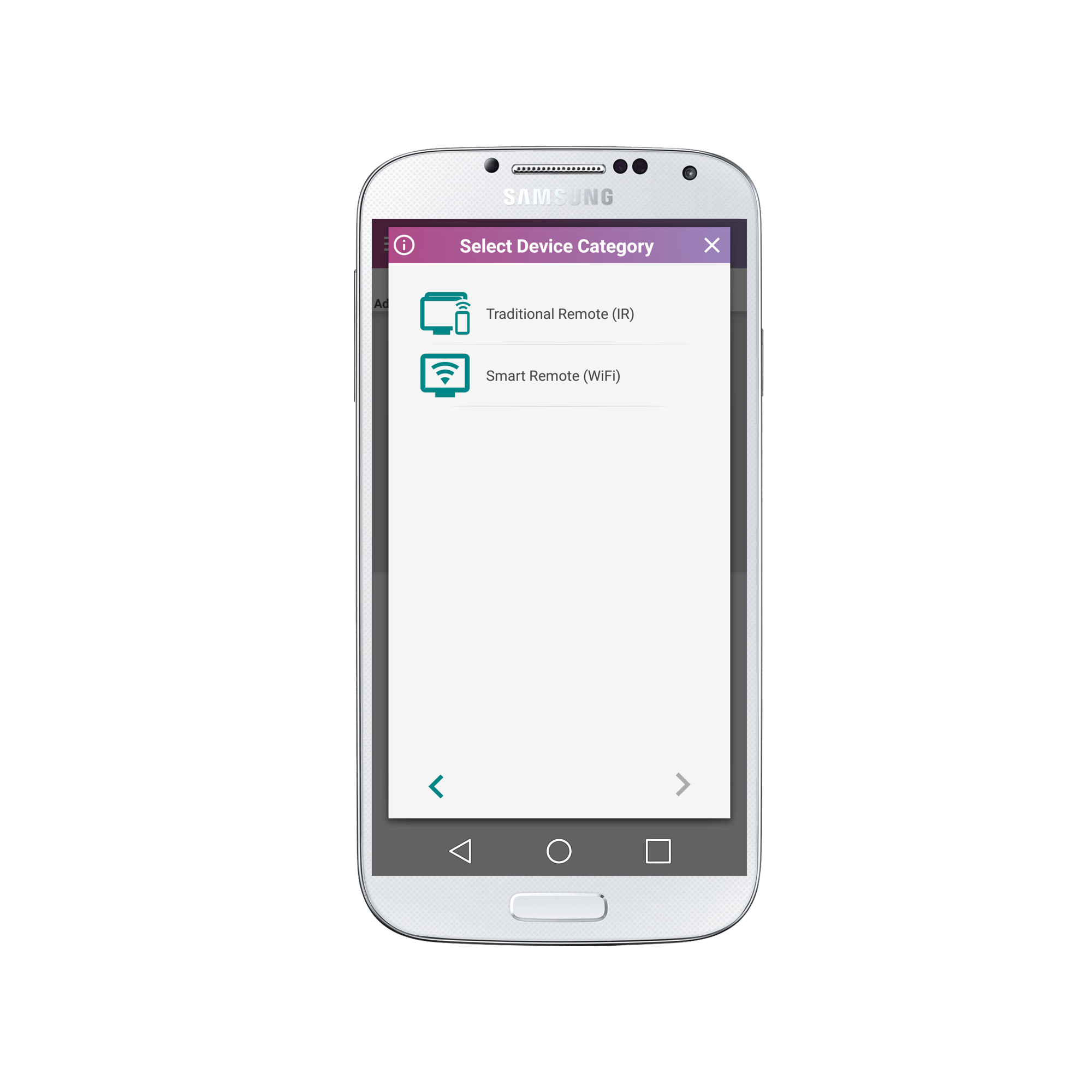
3. Select “Air Conditioner”

4. Select the Device Brand. (If your brand is missing please run a full AC Remote scan of all our air conditioner remotes as one could work for your air conditioner)
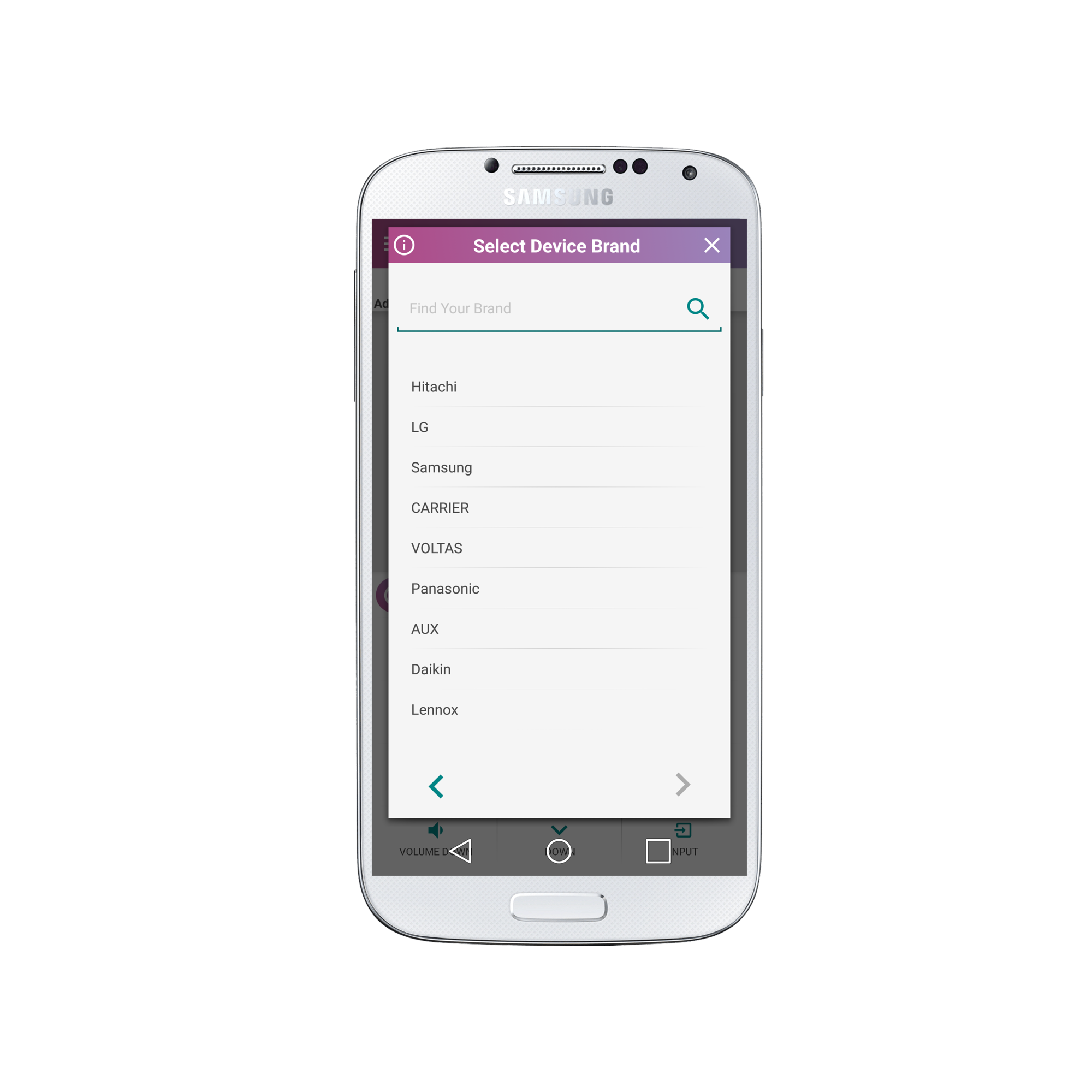
5. Please wait as additional remotes are loaded from the SURE Cloud.
*Make sure that you are connected to WiFi to access them all – after you add the remote you will no longer need WiFi to use it.
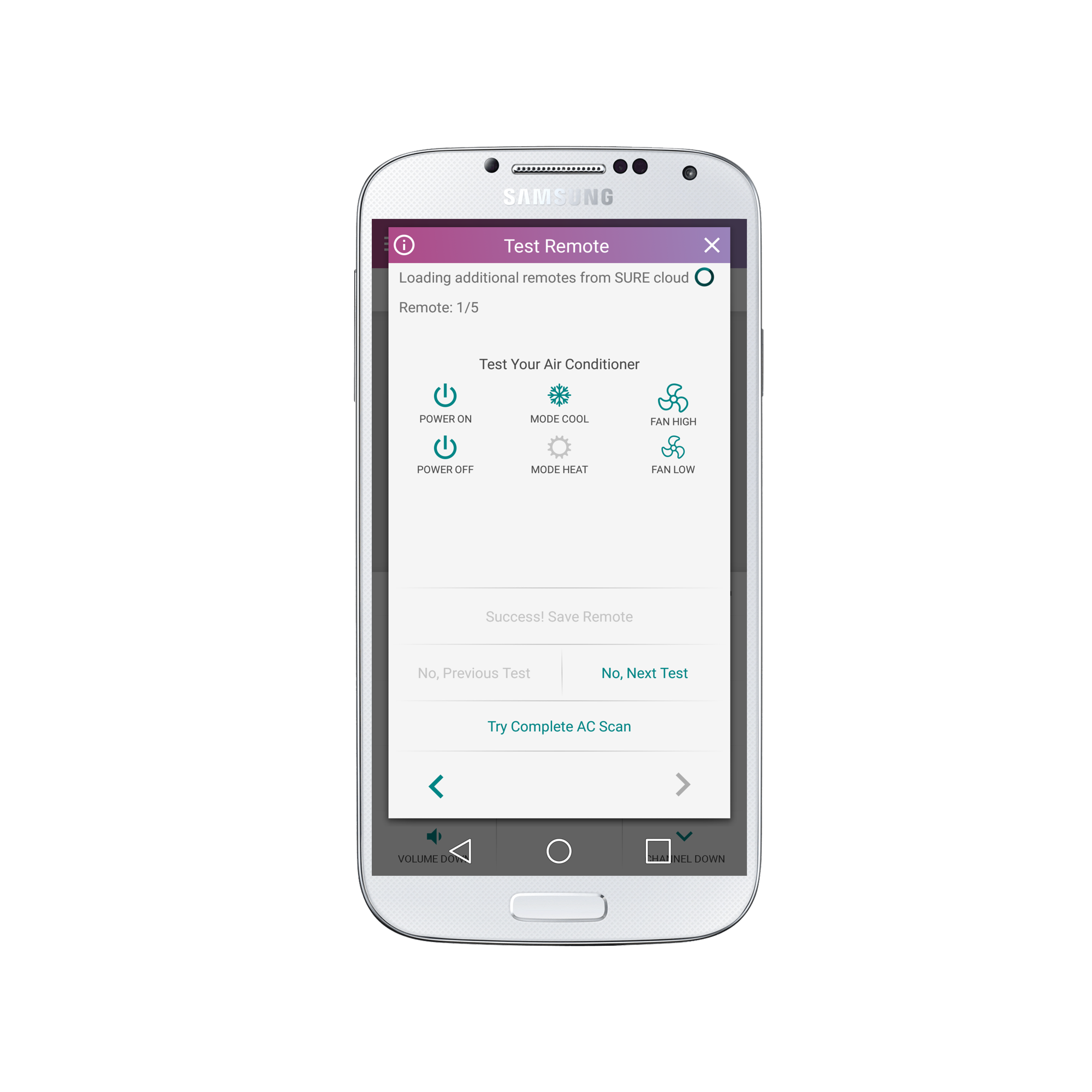
6. Now test if the remote works for your air conditioner. Click the Power On and Power Off buttons. If one doesn’t work click “No, Next Test” and keep trying until you find a compatible remote.
Once the buttons respond click “Success! Save Remote”.

IMPORTANT NOTE:
Once you have tried all the remotes available click the “Try Complete AC Scan” button and follow the instructions here.
7. Congratulations! Your remote will now appear as below:

You can now rename your remote if you wish and continue adding more devices. Enjoy!?
Social
关注我们