
Step-by-Step Instructions to Modify Your SURE Universal Remote System
Once you have setup a system (see instructions here) you may want or need to modify it.
You can modify the following:
1. Device List
Add or remove devices
2. One-Button Power
Define which devices you want to turn on and off at the same time
3. Custom Panel
Rearrage your custom panel with your most used device buttons shown on one screen
Follow the below step-by-step instructions:
1. Navigate to the system that you would like to modify and tap the 3 vertical dots in the top right corner.
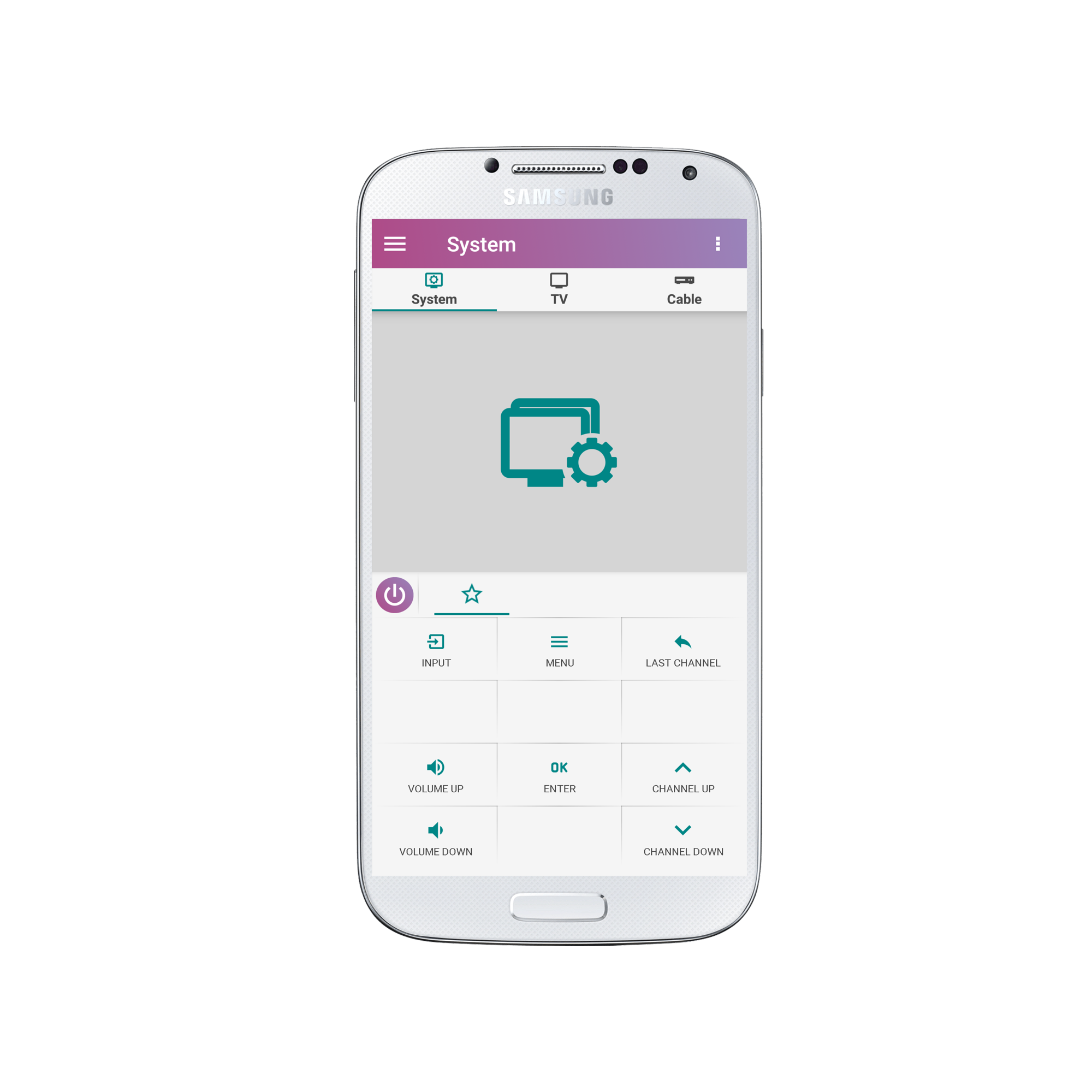
2. Select “Modify System”
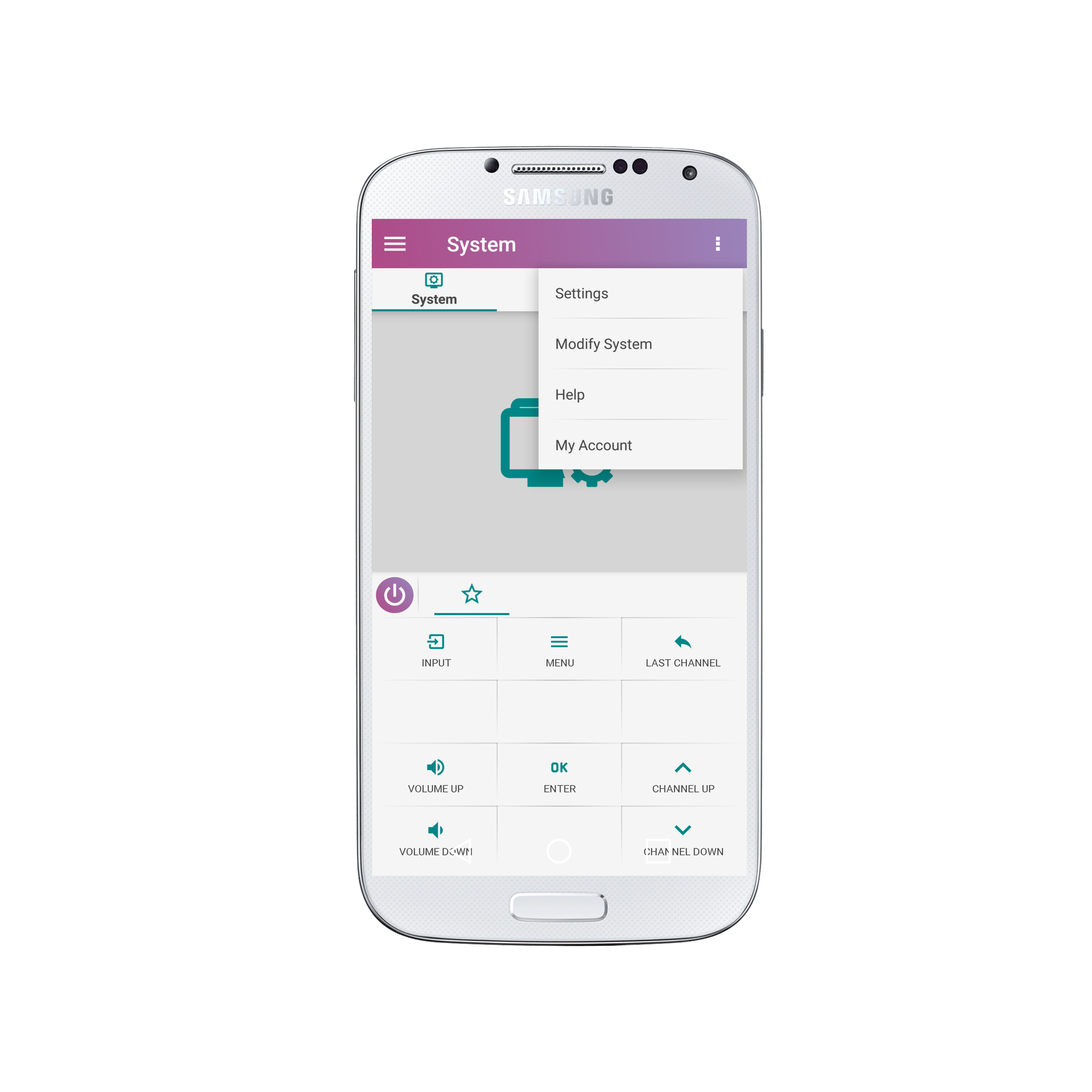
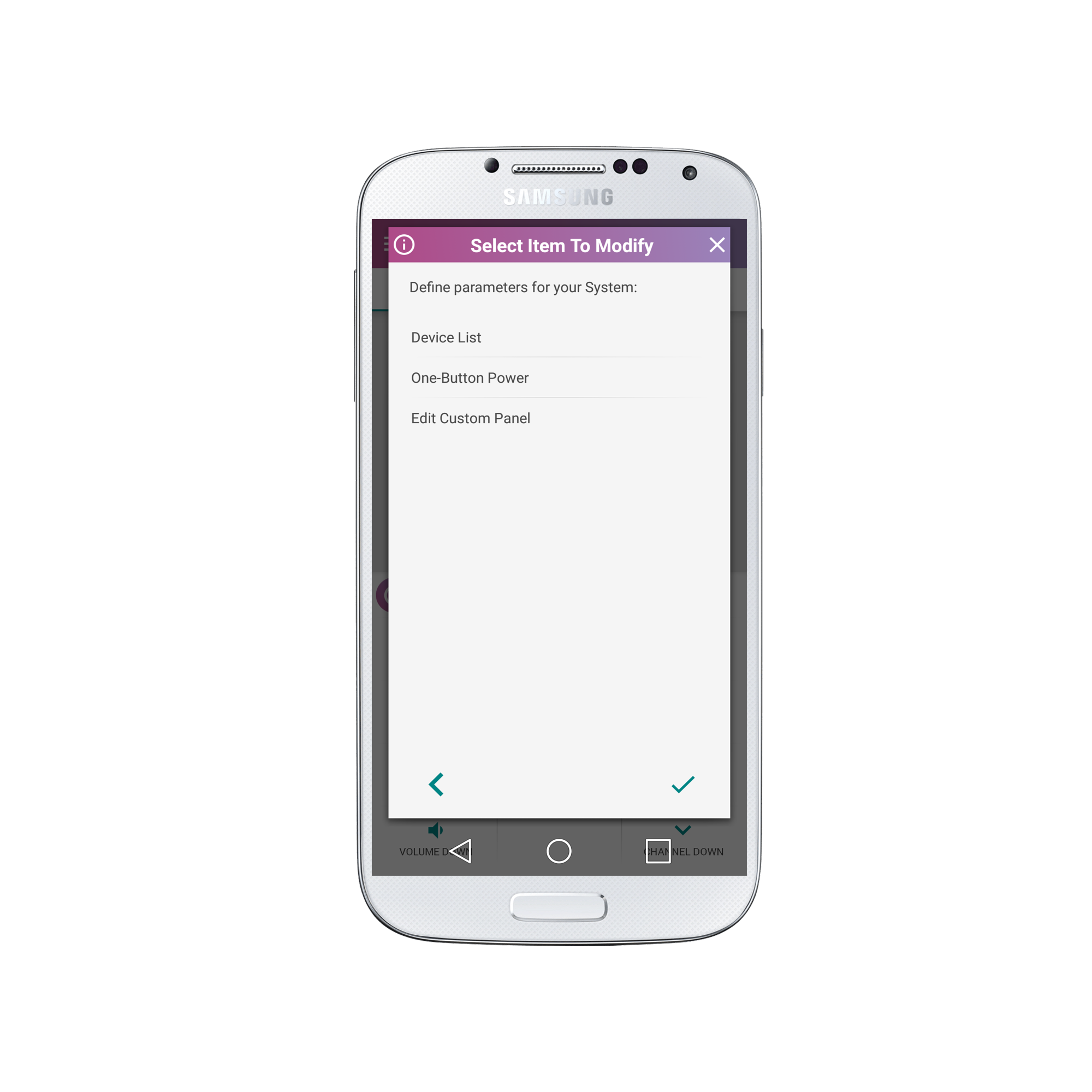
3. If you want to add or delete devices from this System click “Device List”
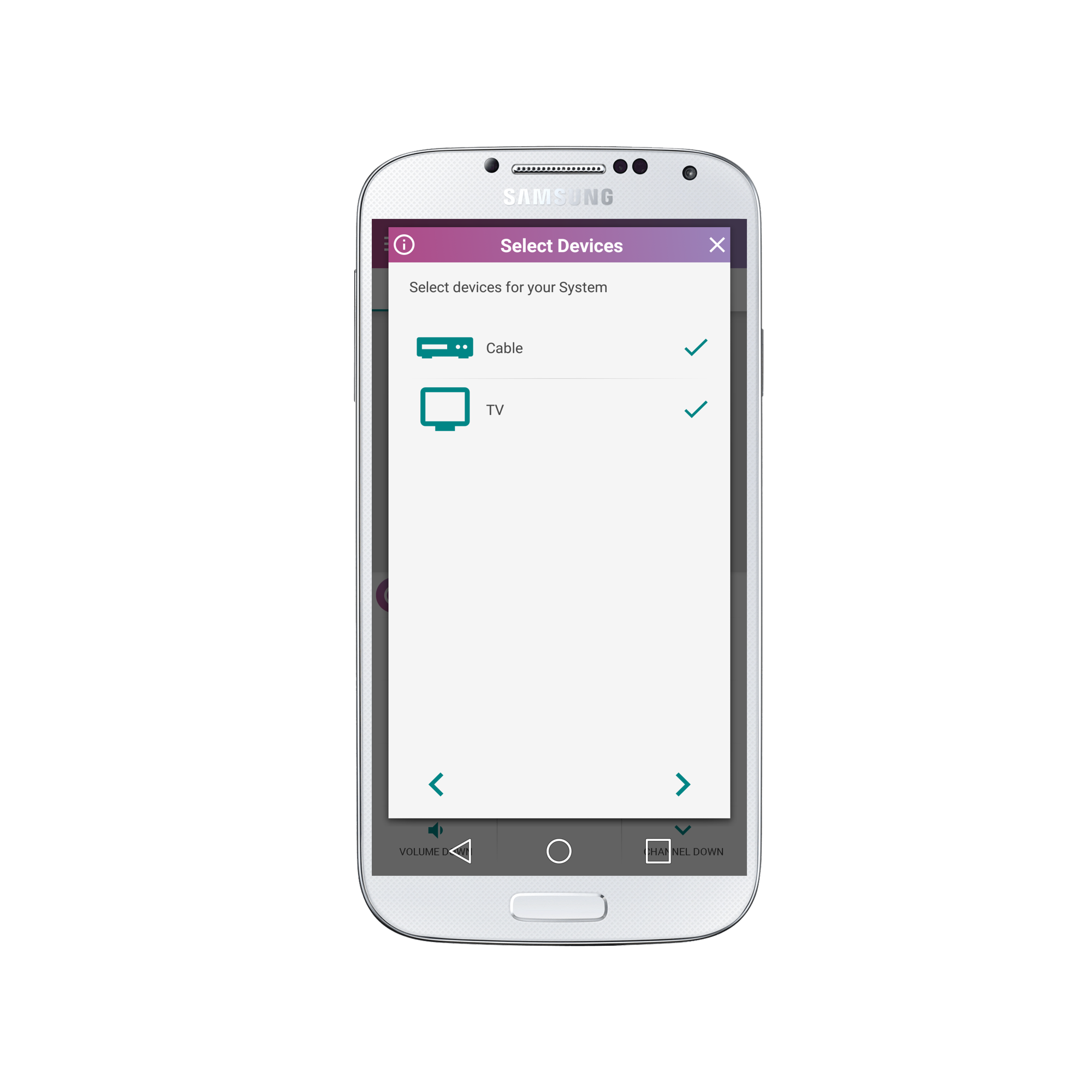
4. On the next screen you can either select additional devices or deselect devices you no longer require. Click the right arrow at the bottom of the screen.
5. If you want to add or remove devices for the One-Button Power select the “One-Button Power” button.
6. Select or deselect devices. Click the right arrow at the bottom of the screen.
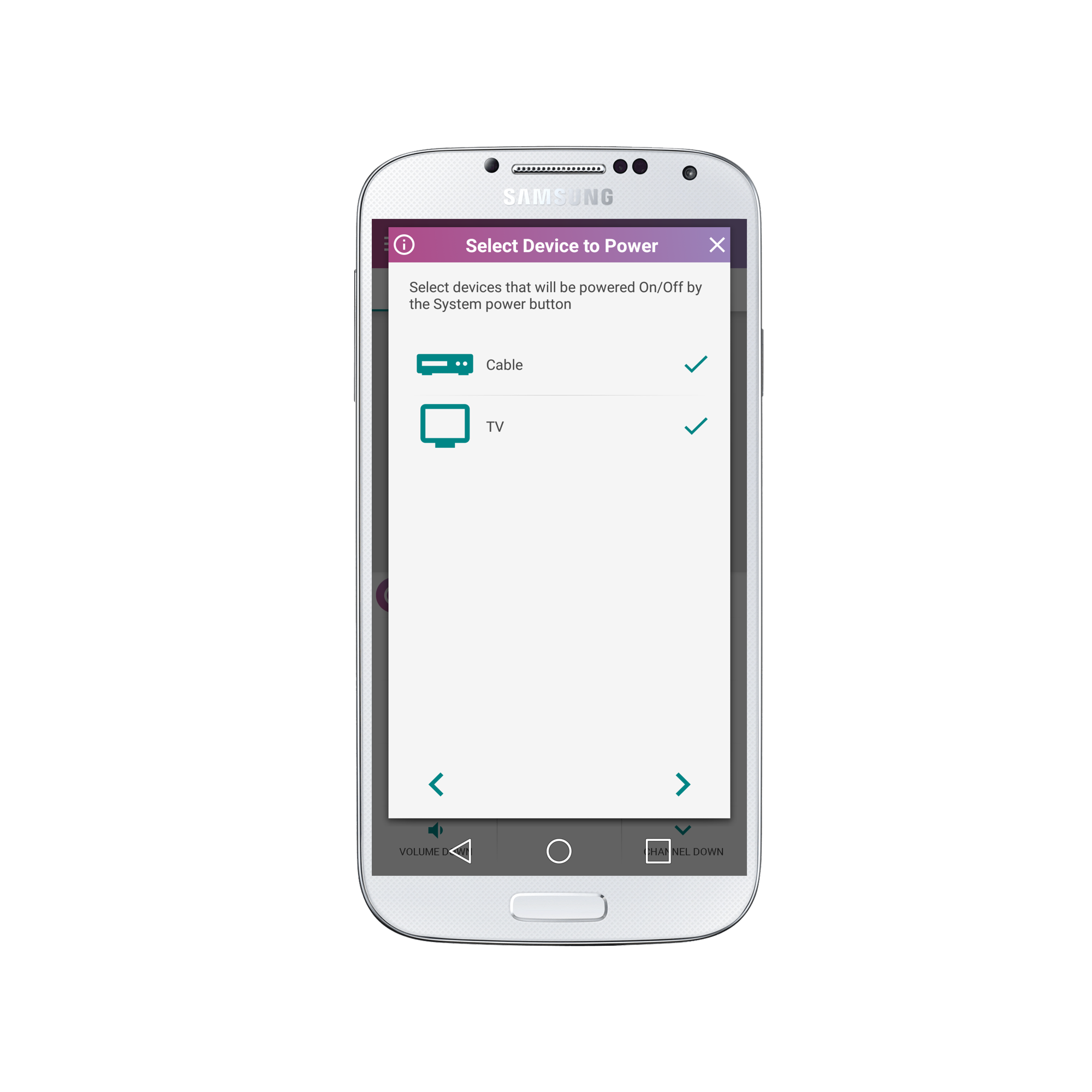
7. If you are finished modifying your system click on the check at the bottom of the Modify System screen and wait for the magic. (It will take a few seconds)
To change the buttons that will appear on the System remote click the “Edit Custom Panel” button.
8. Drag all of the buttons you no longer need off the screen towards the bottom panel.
Drag all of your desired buttons for each device in the system onto the grid and arrange them how you would like. You can scroll through the extra panels to access more buttons.
You can learn how to make a macro button for your system here.
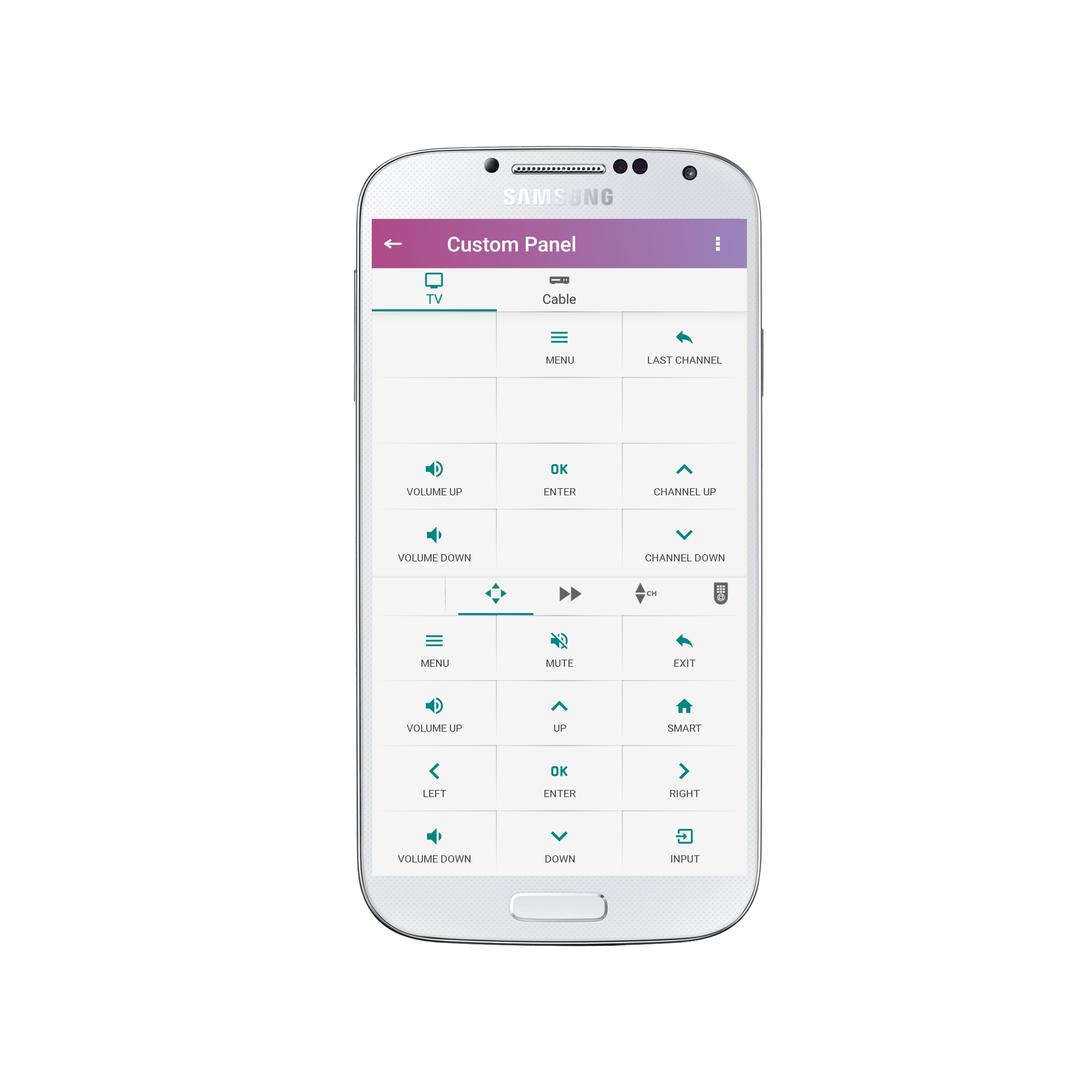
9. Once you have selected all of your desired buttons for the first device in the System, move to the next by clicking on the device icon and selecting the next device.
After you have chosen all of your desired buttons for each device in the System click on the arrow in the upper left to return to the System remote.
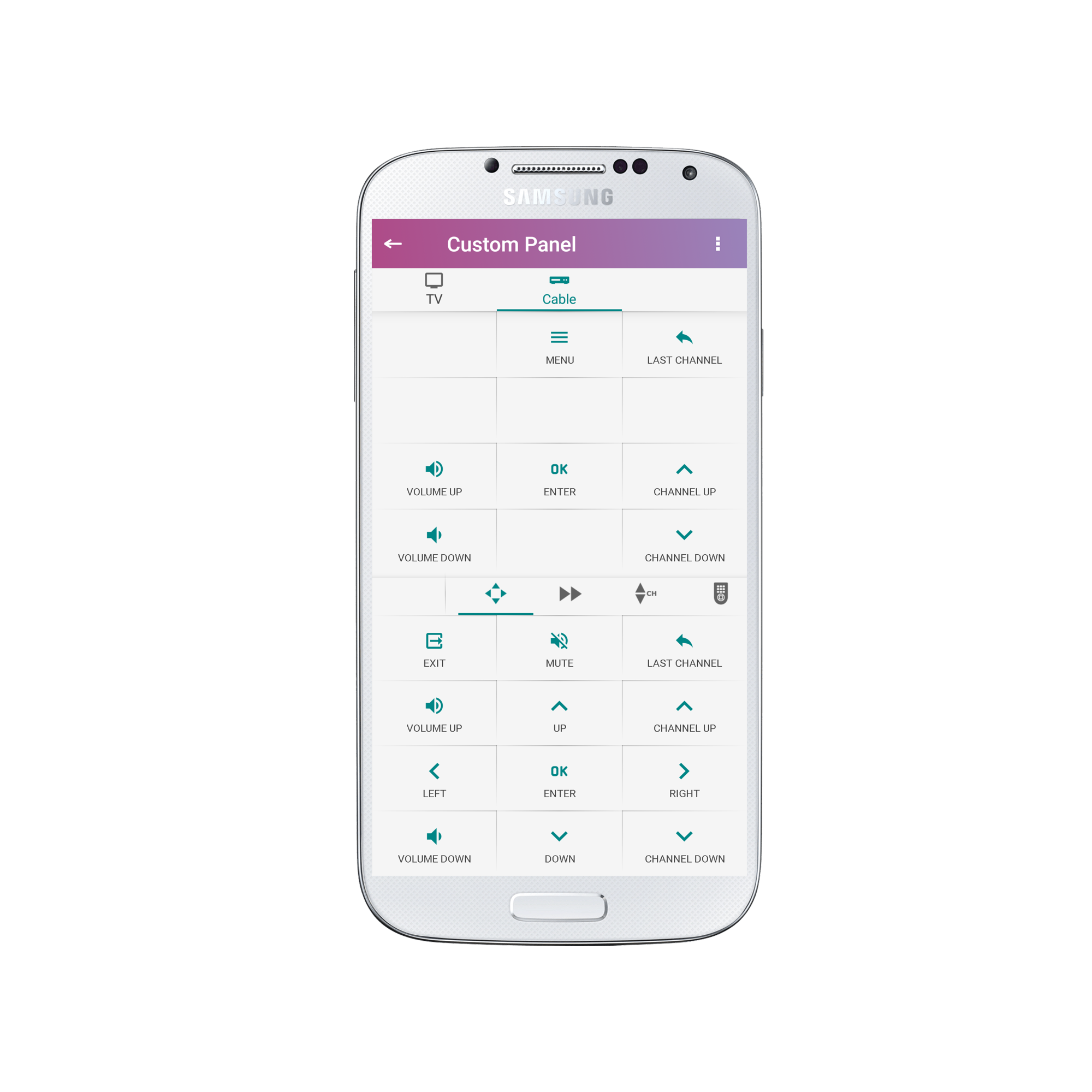
10. Congratulations! Your system is now setup just the way you want!?
Social
关注我们