
Step-by-Step Instructions to Add New Smart (WiFi) Devices to Your SURE Universal Remote
The SURE Universal Remote supports both WiFi and IR devices.
Once you have downloaded the SURE Universal Remote control read the step-by-step instructions below to learn how to add your smart (WiFi) devices:
1. From the “All Devices” screen tap the “+” symbol in the upper left of the screen
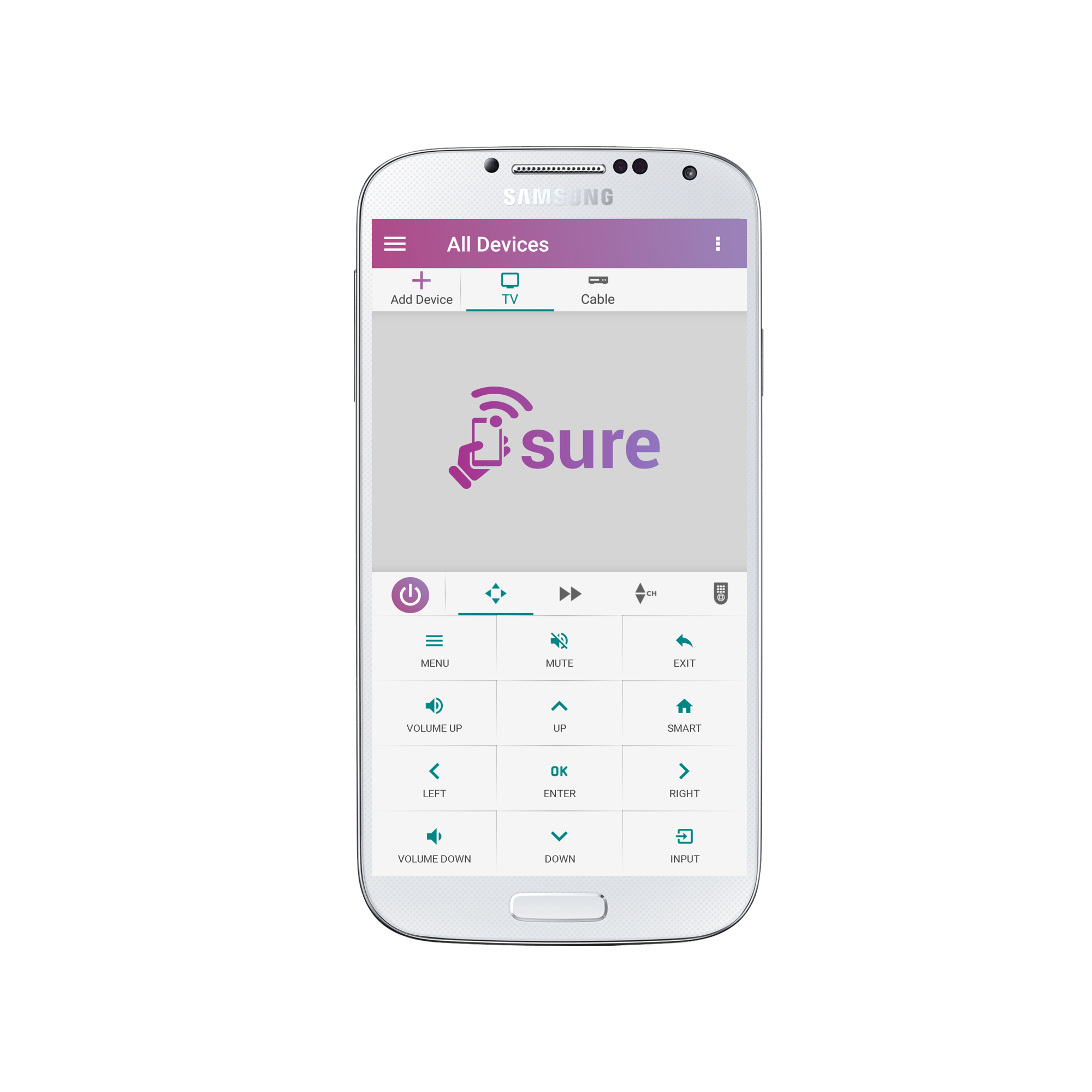
2. Select Smart Remote (WiFi)
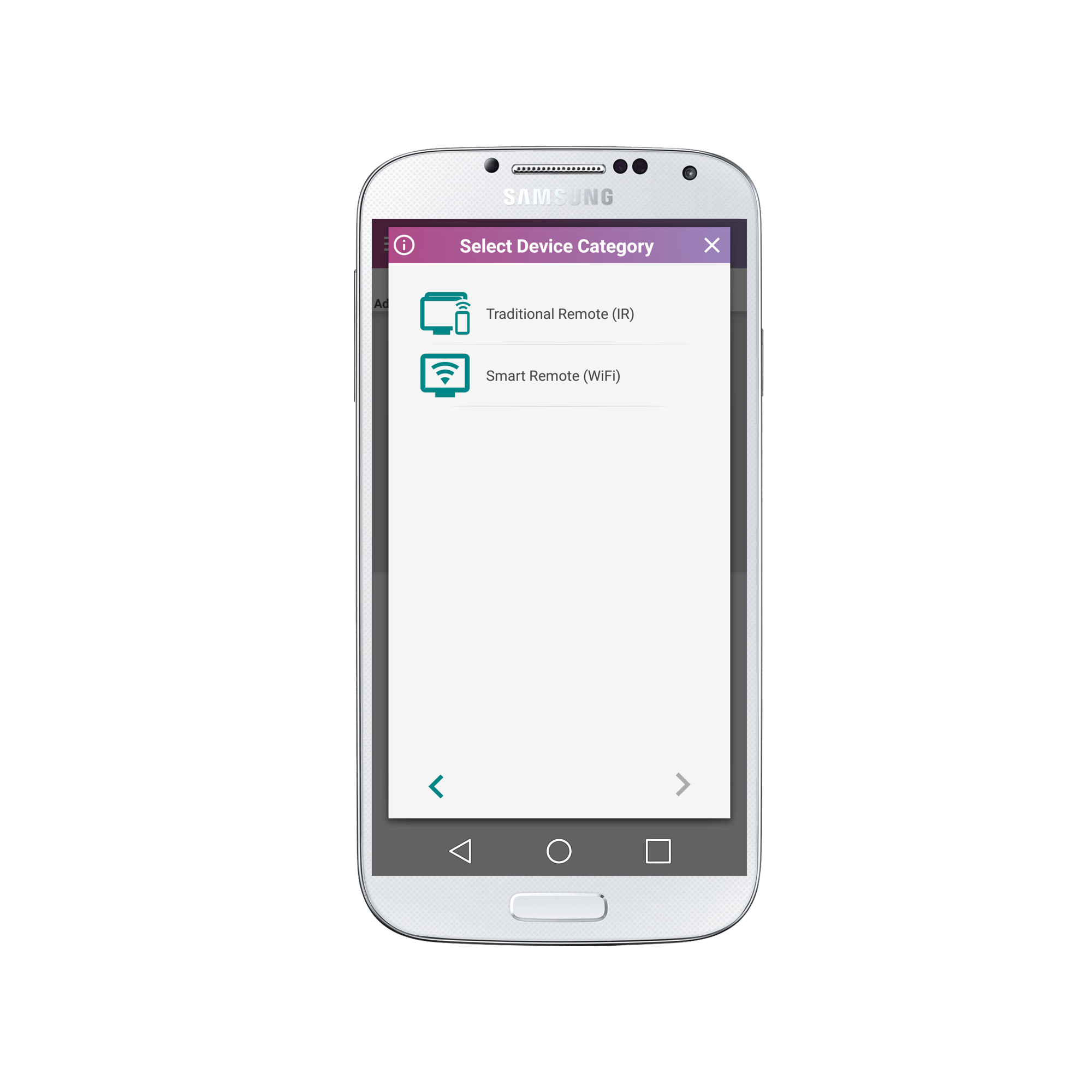
3. Select the Device Type. This can be either TV, Media Streamer, Home Automation, WiFi-IR Transmitter, or Media Sharing (DLNA).
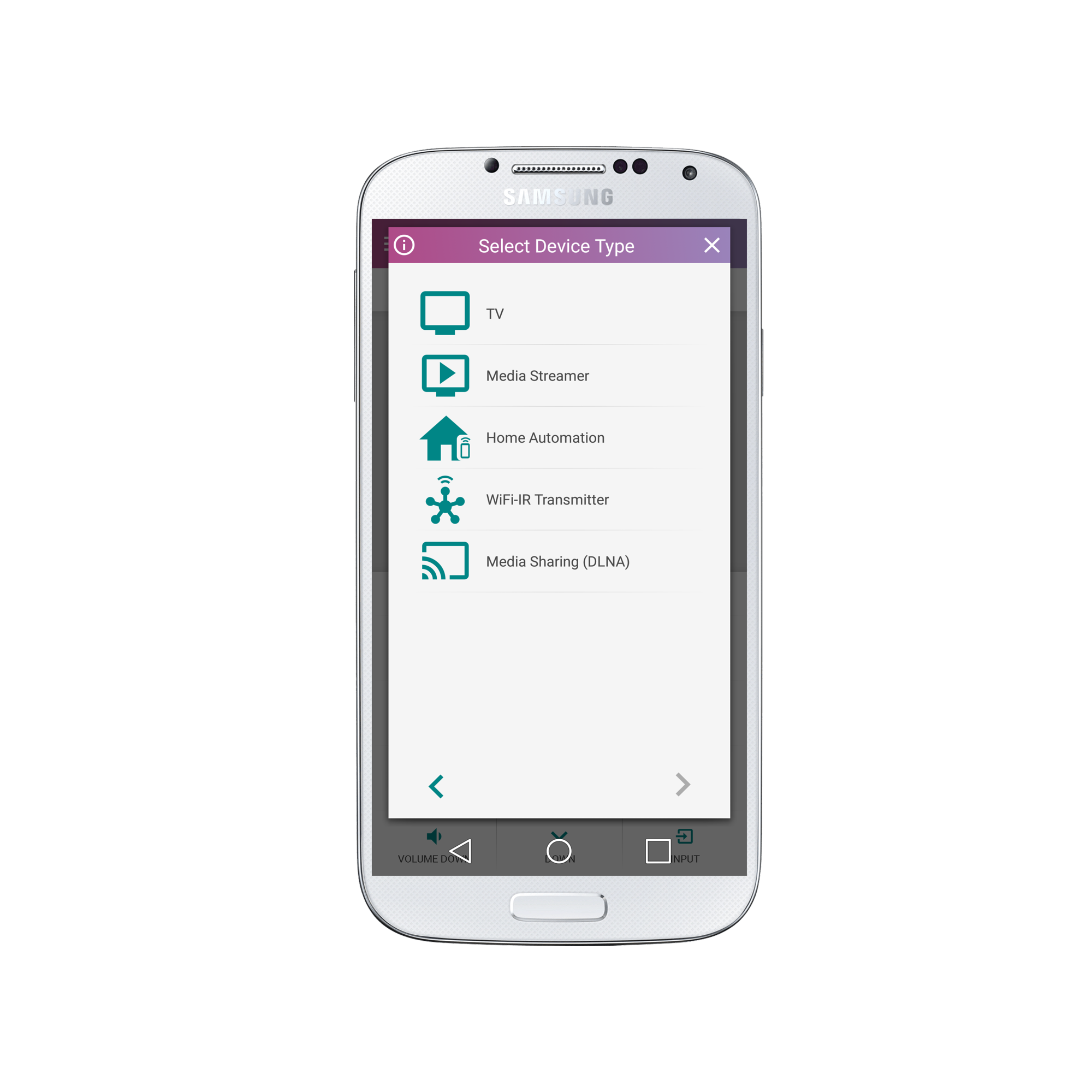
4. Select the Device Brand. If we are missing your brand please let us know via this form.
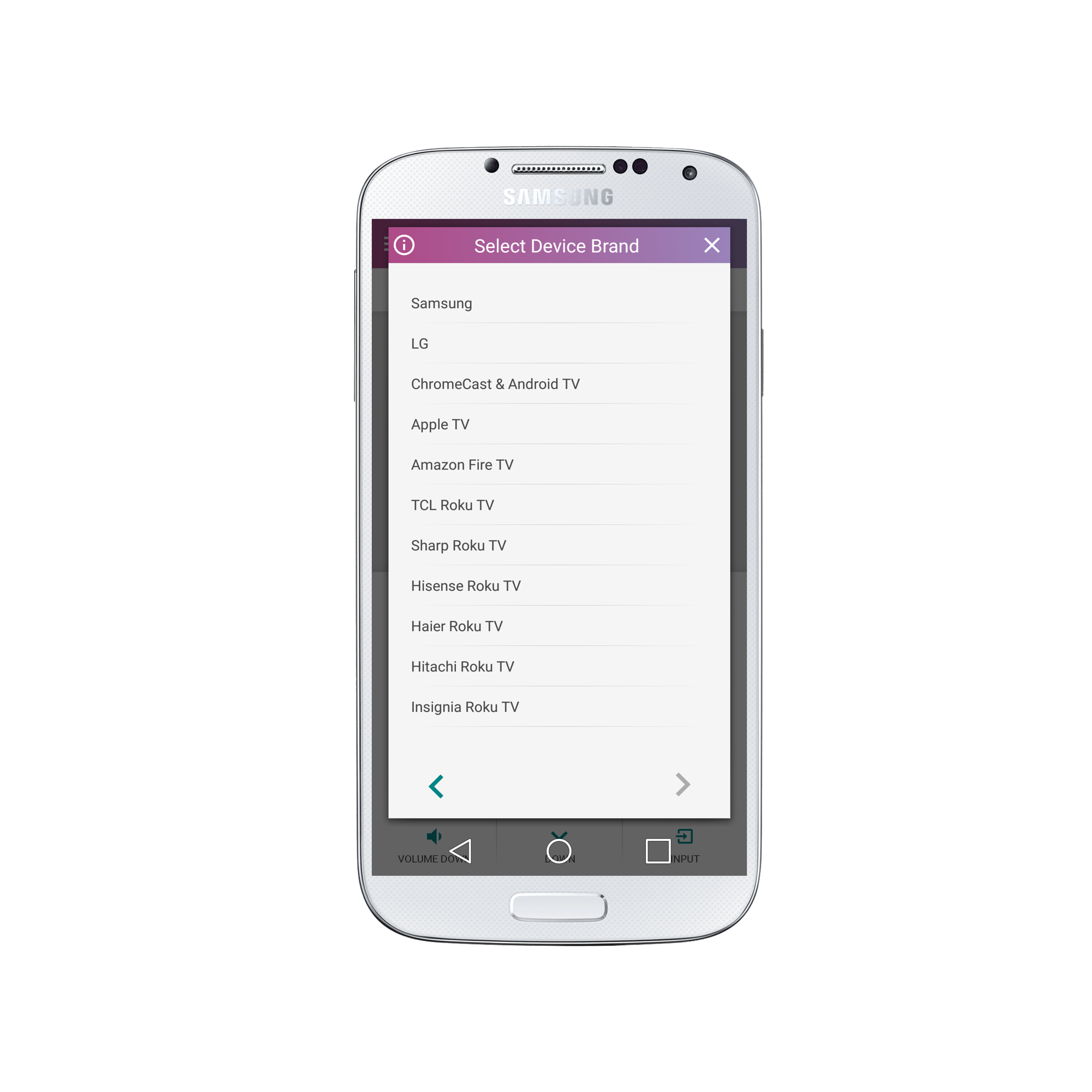
5. Please wait for a few seconds while we search for all the devices that meet the criteria.
Once the device is discovered, select the device name.

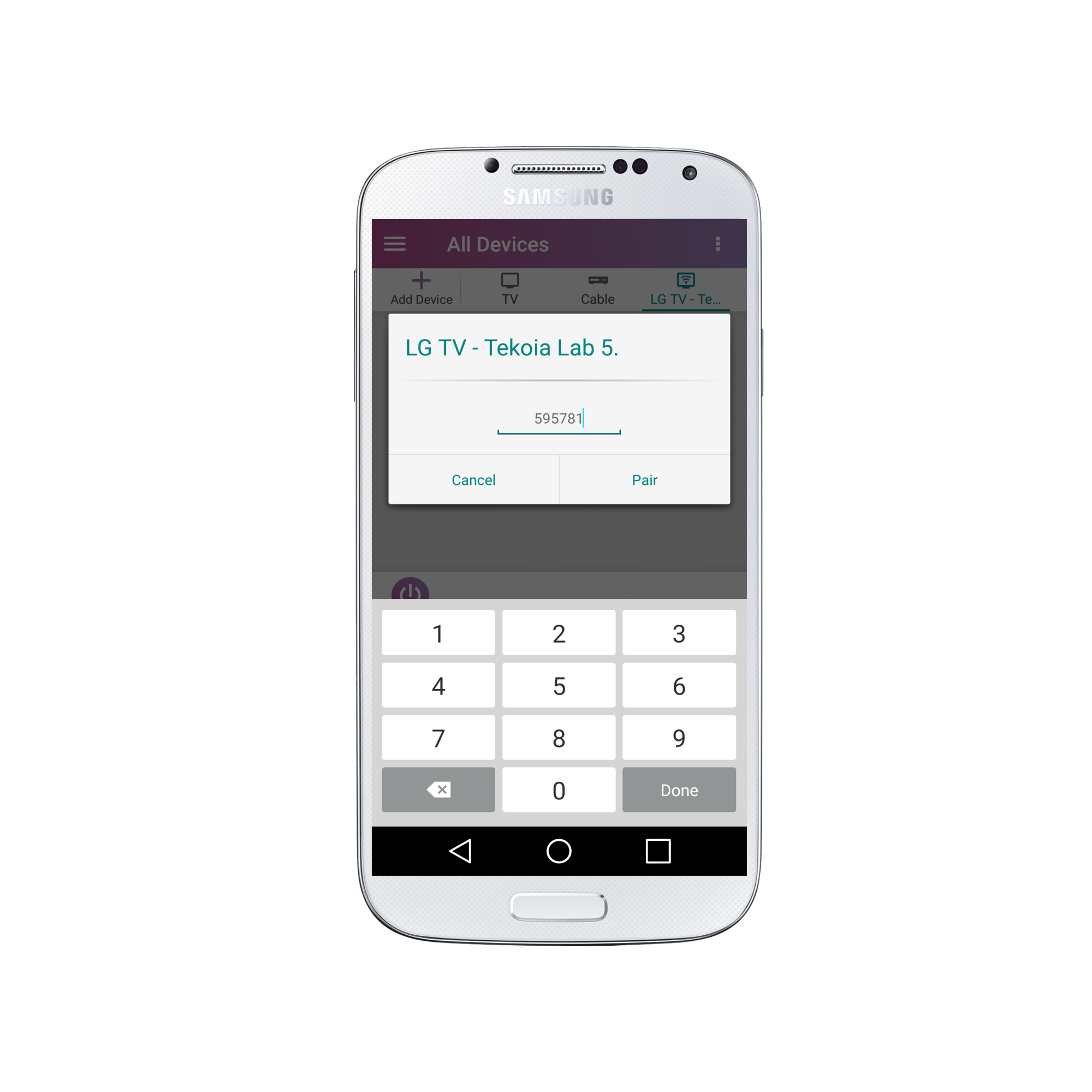
6. You may be prompted to enter a pairing key that will appear on your television screen.
If so, enter the key and select “Pair”.
7. Congratulations! Your remote will now appear as below:
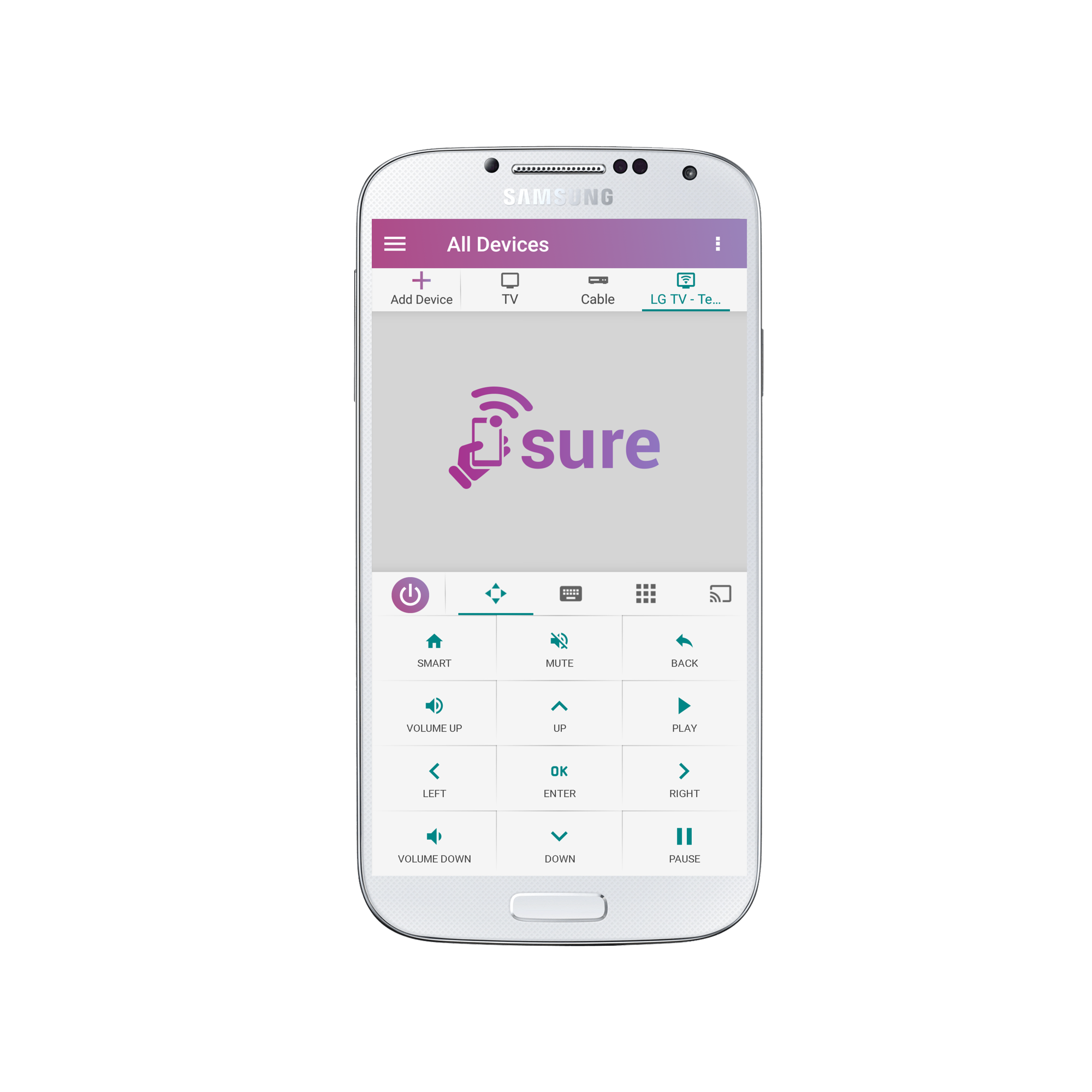
That’s it! Enjoy using your SURE Universal Remote.?
Now you can add additional WiFi devices, or you can add IR devices.
If you have multiple devices that you use together, such as a home cinema, you can set these up in one SURE System. This will enable you to turn them all on and off with one click.
Social
关注我们