

Step-by-step Instructions on how to create your own custom panel
The SURE Universal Remote has a custom panel. You can add your favorite buttons and commands to this panel for each device. This panel will then become the default panel for the device.
Below are step-by-step instructions or you can watch our short training video:
1. On the devices screen select a device for which you want to add a custom panel.
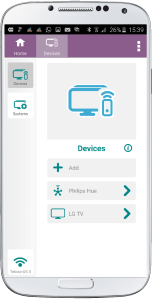
2. On the bottom panel long press the star icon.
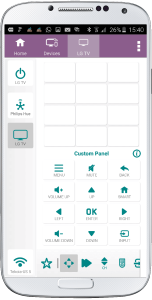
3. Drag any buttons you wish to the top panel.
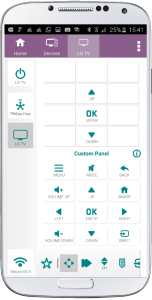
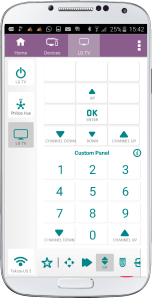
4. You can add buttons from the other panels too.
 |
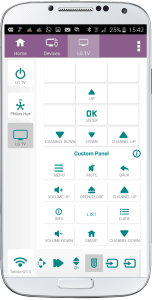 |
5. When you have added all the buttons you need, click the star icon again. If you don’t see the star icon scroll to the left on the bottom panel.
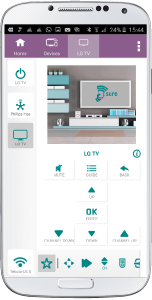
That’s it! You now have all your favorite buttons and commands in your own custom panel.
Social
关注我们