
Step-by-Step Instructions to Setup Your Broadlink WiFi to IR Converter
SURE can be downloaded on all Android IR devices, such as: Galaxy, Samsung, Xiaomi, Huawei, LG etc.
If your phone does not have an IR Blaster you will need a Broadlink WiFi to IR Converter to have full functionality with the app. Don’t have one yet? Get it here.
Once you have downloaded the SURE Universal Remote control and have your converter read the step-by-step instructions below to learn how to set it up:
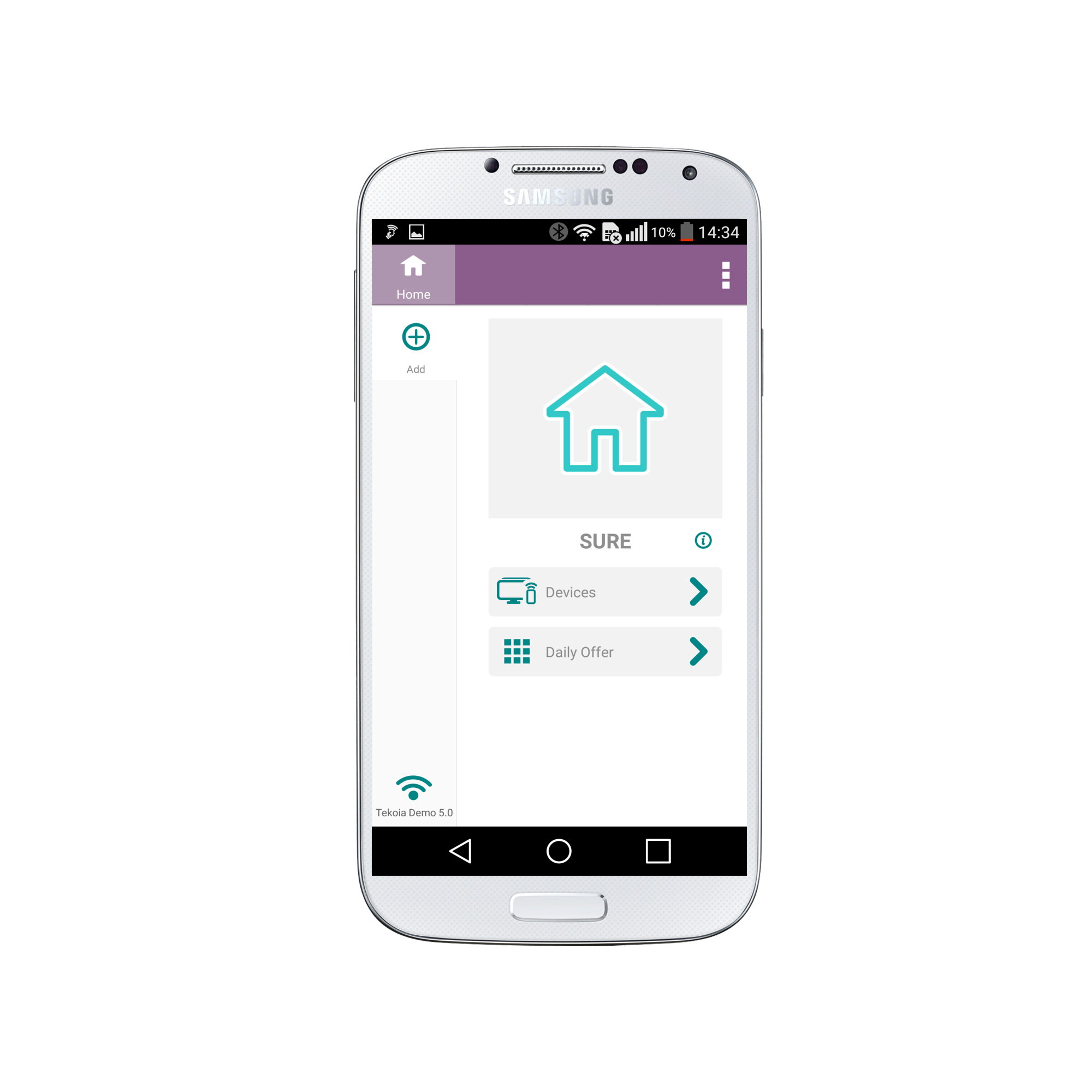
1. Click “ADD” on the Home Screen
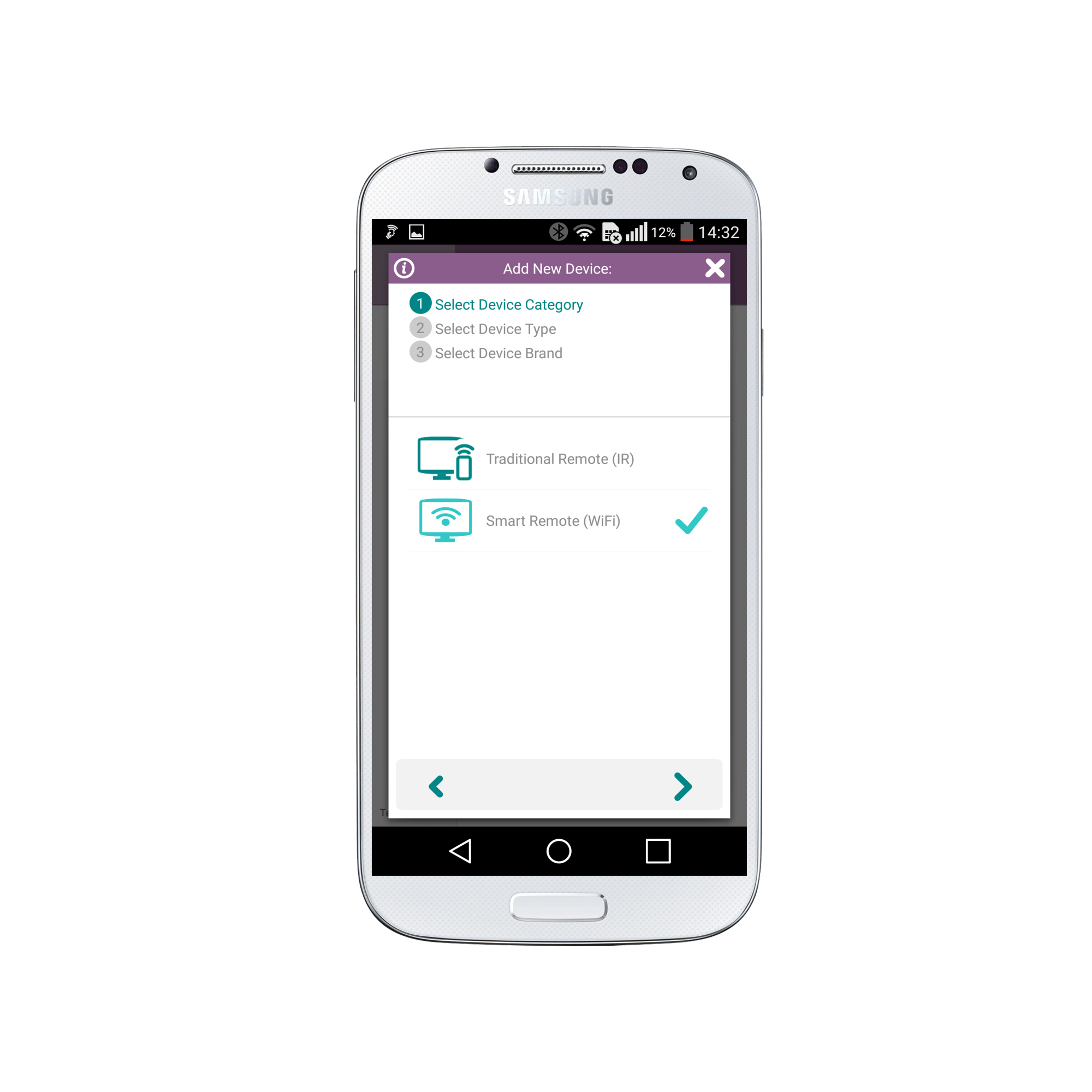
2. Select “Smart Remote (WiFi)” and click the “Arrow” in the bottom right
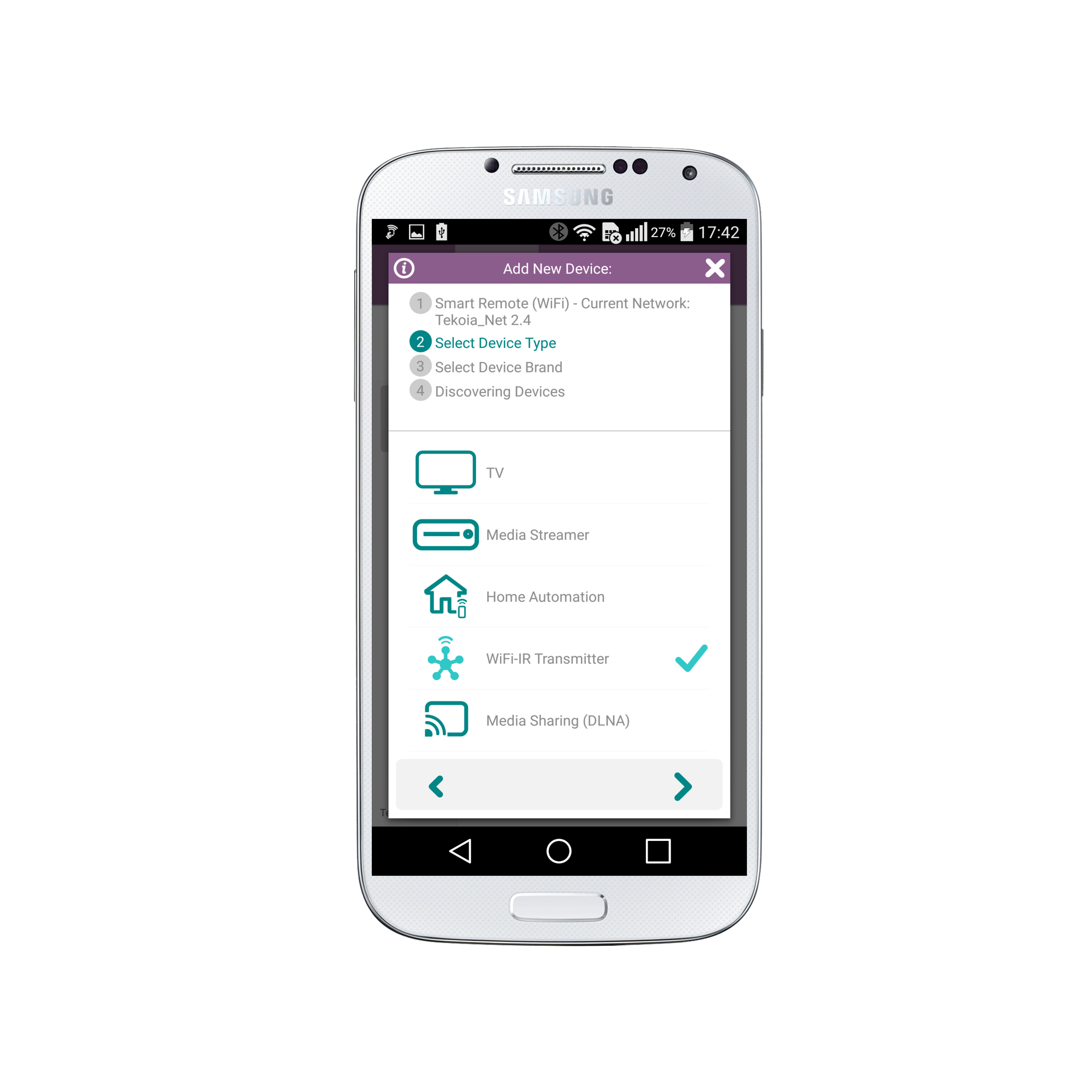
3. Select “WiFi-IR Transmitter” and click the “Arrow” in the bottom right
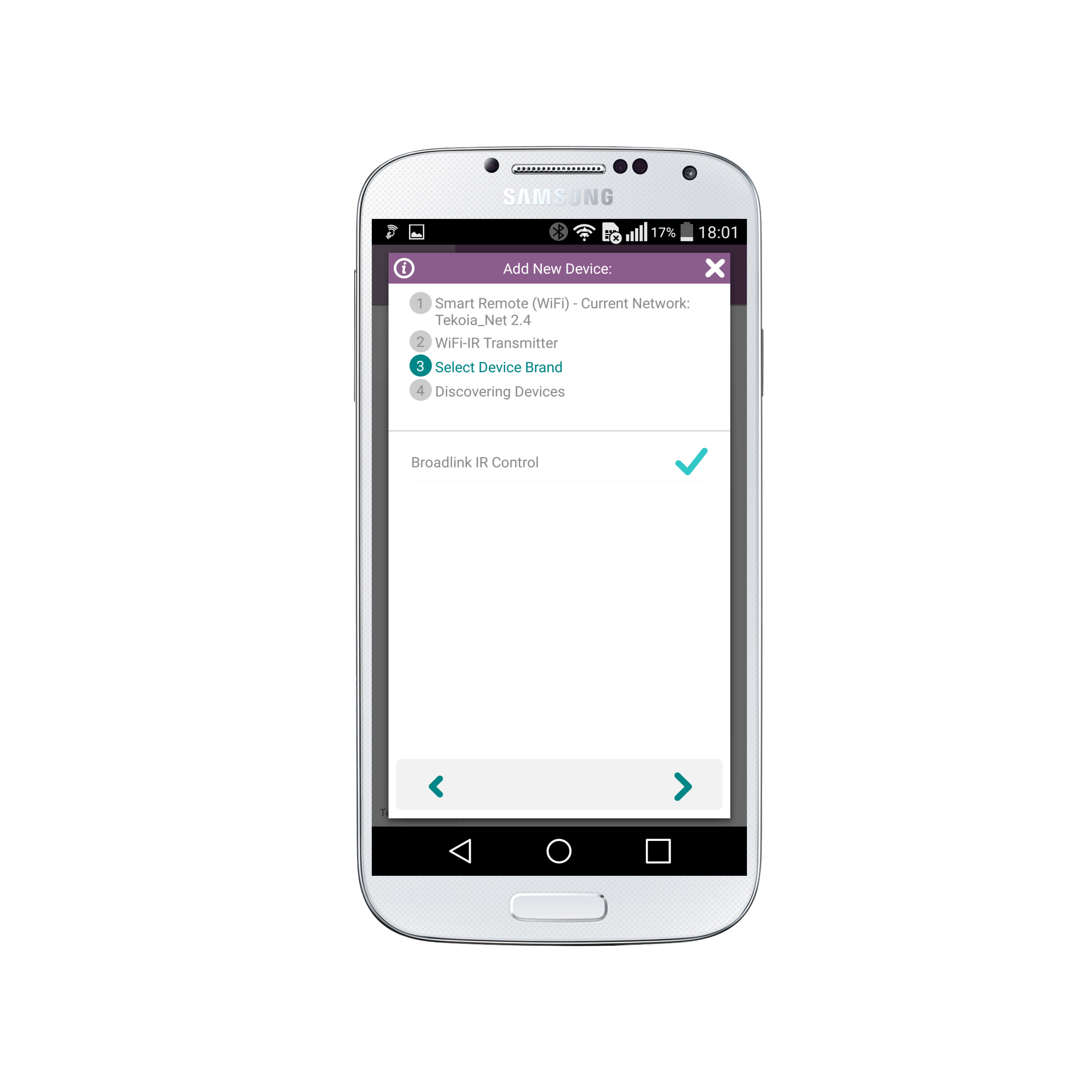
4. Select “Broadlink IR Control” and click the “Arrow” in the bottom right
5. Click the “Check” in the bottom right to configure your Broadlink
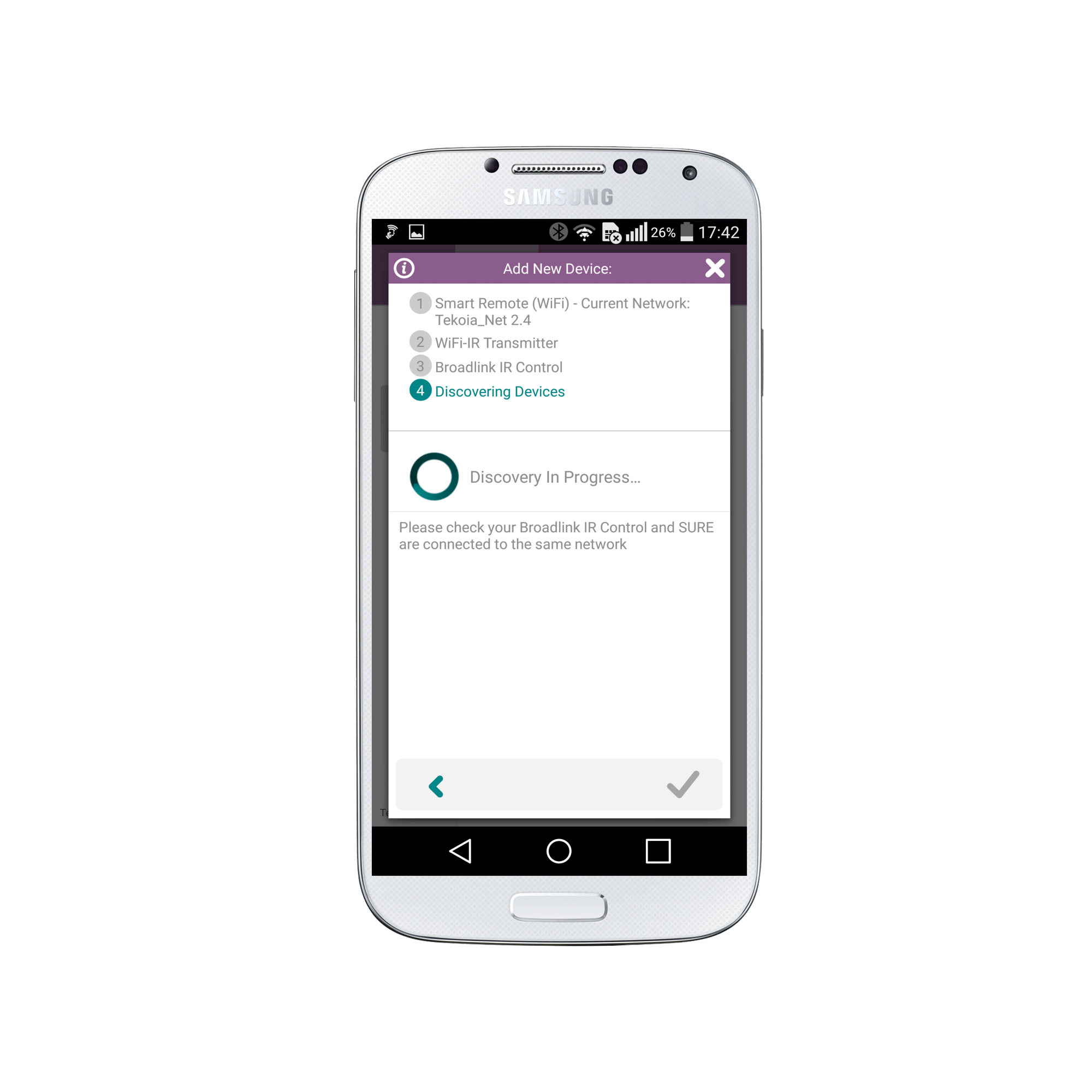
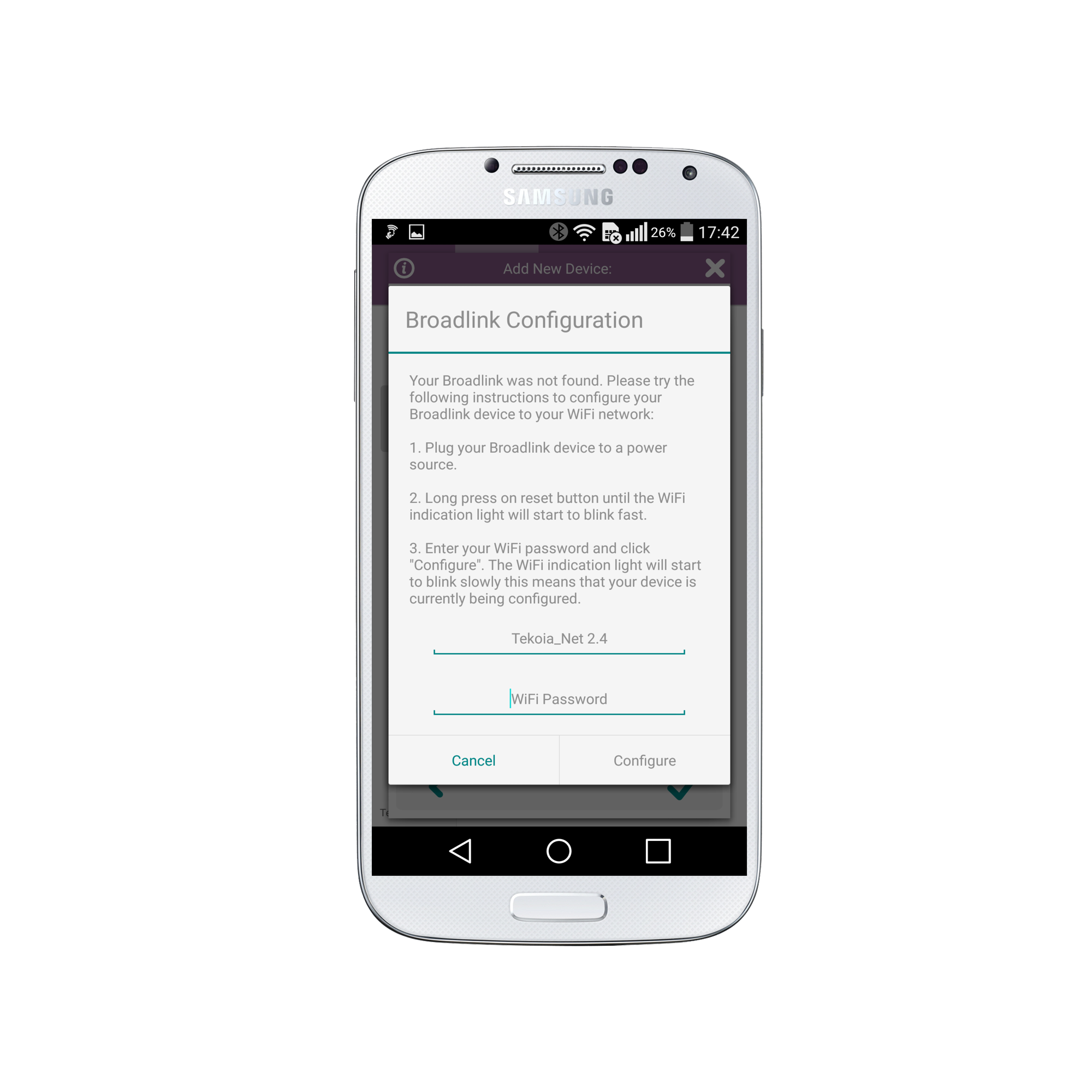
6. Now you need to configure your Broadlink. This is very simple.
a. Plug your Broadlink into a power source
b. Long press the reset button until the blue LED light is rapidly flashing about 3 times per second
c. Enter your WiFi password and click “Configure”
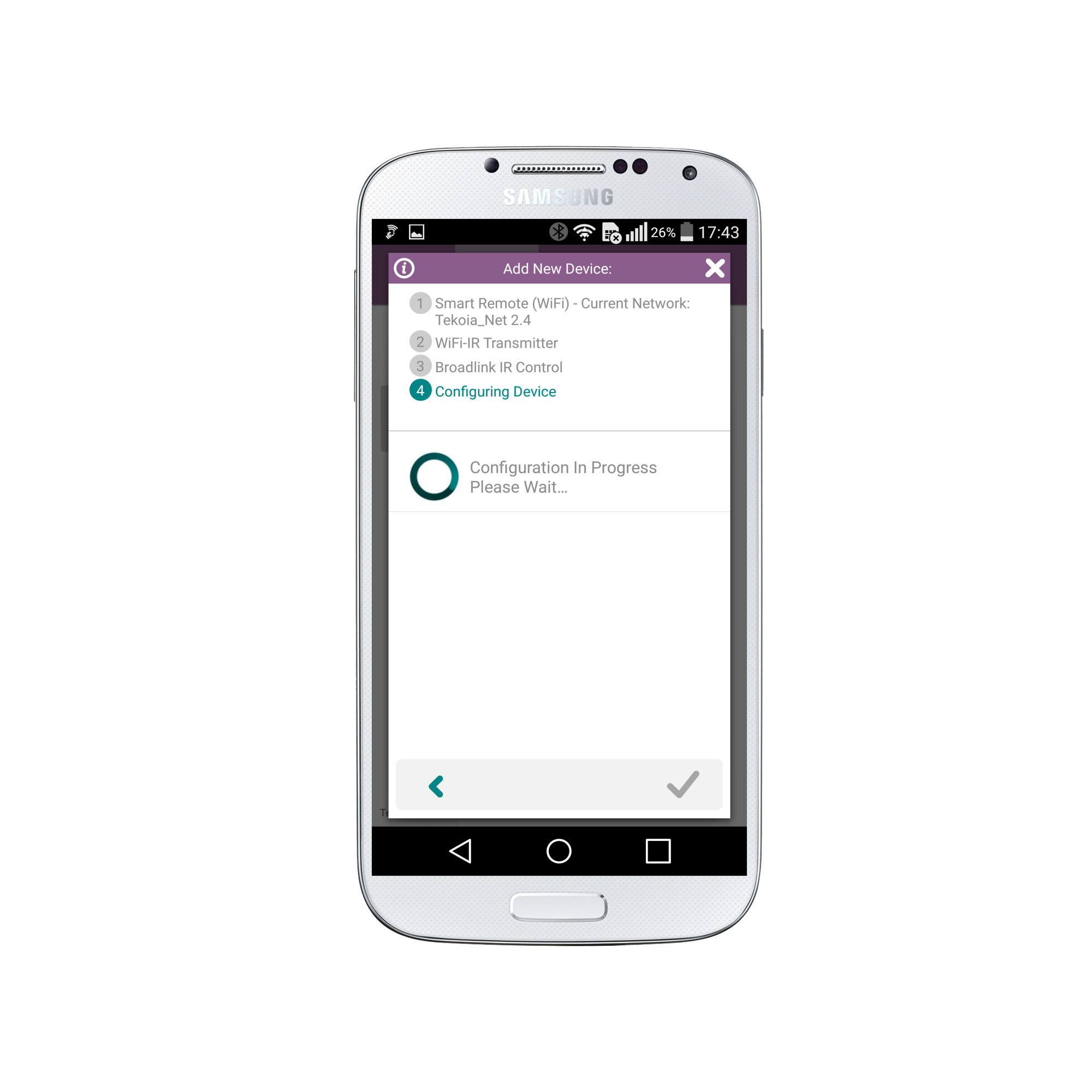
7. Please wait for a moment as configuration is in progress.
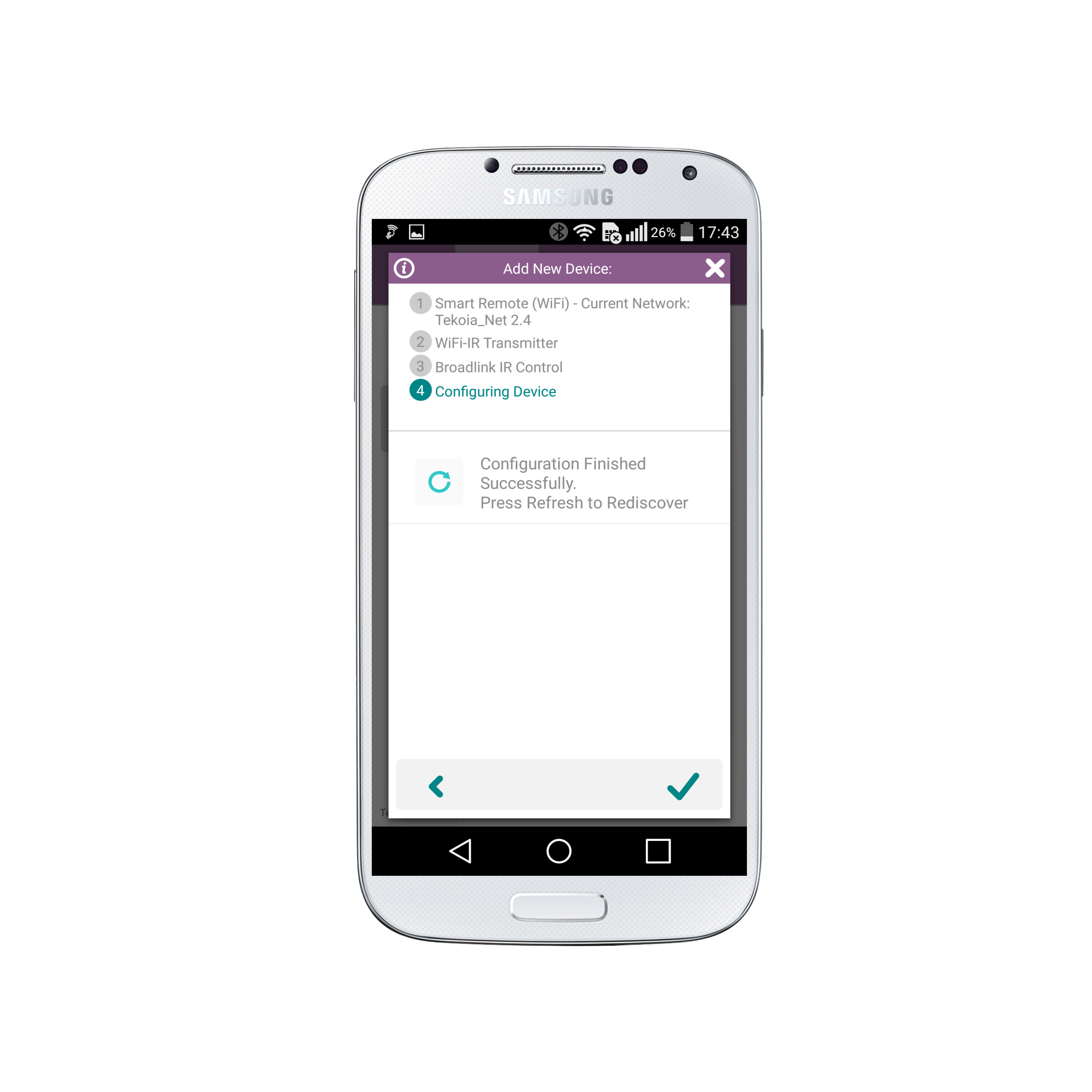
8. Once configuration is finished press the “Check” in the bottom right to refresh and rediscover the converter
9. Select your Broadlink Converter and press the “Check” in the bottom right
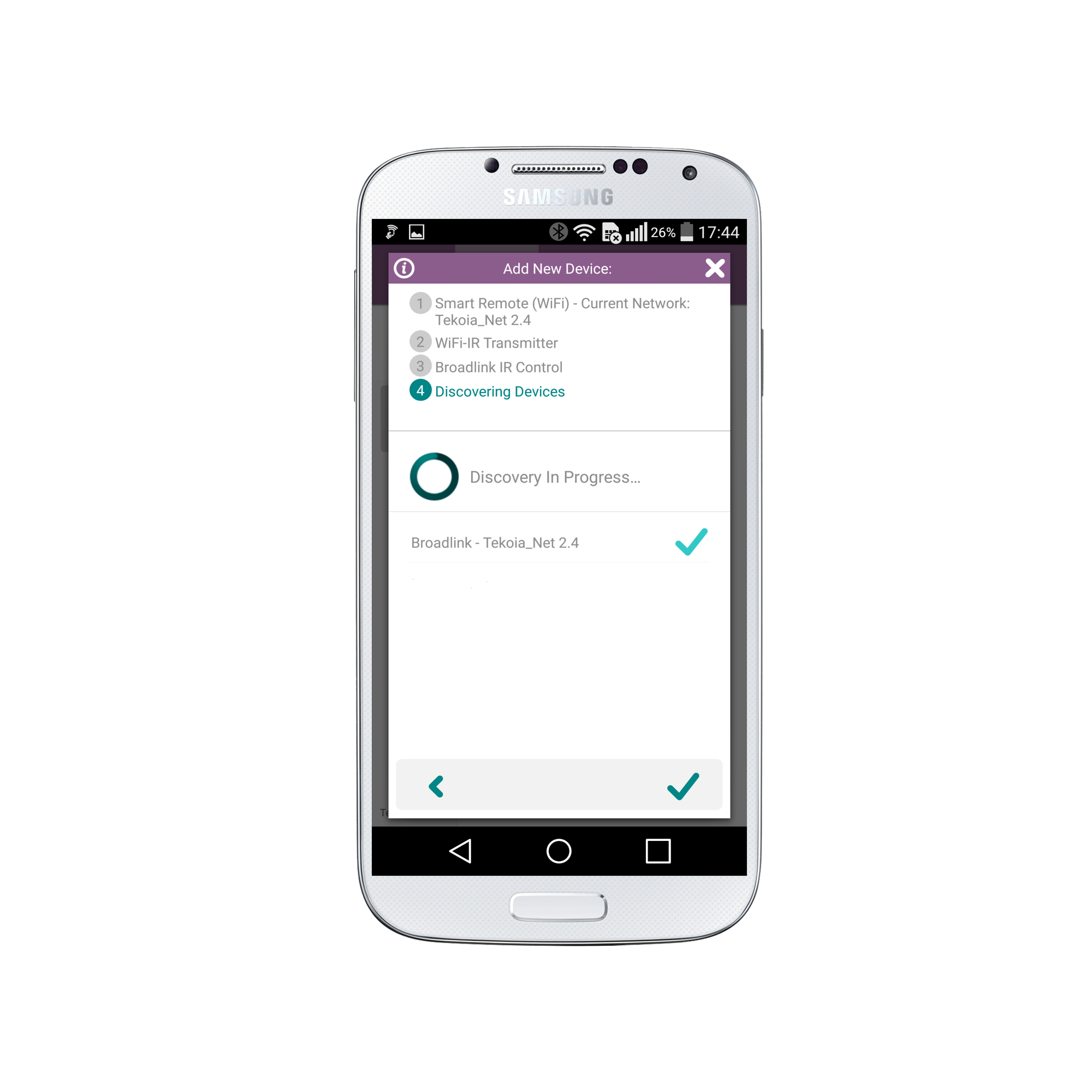
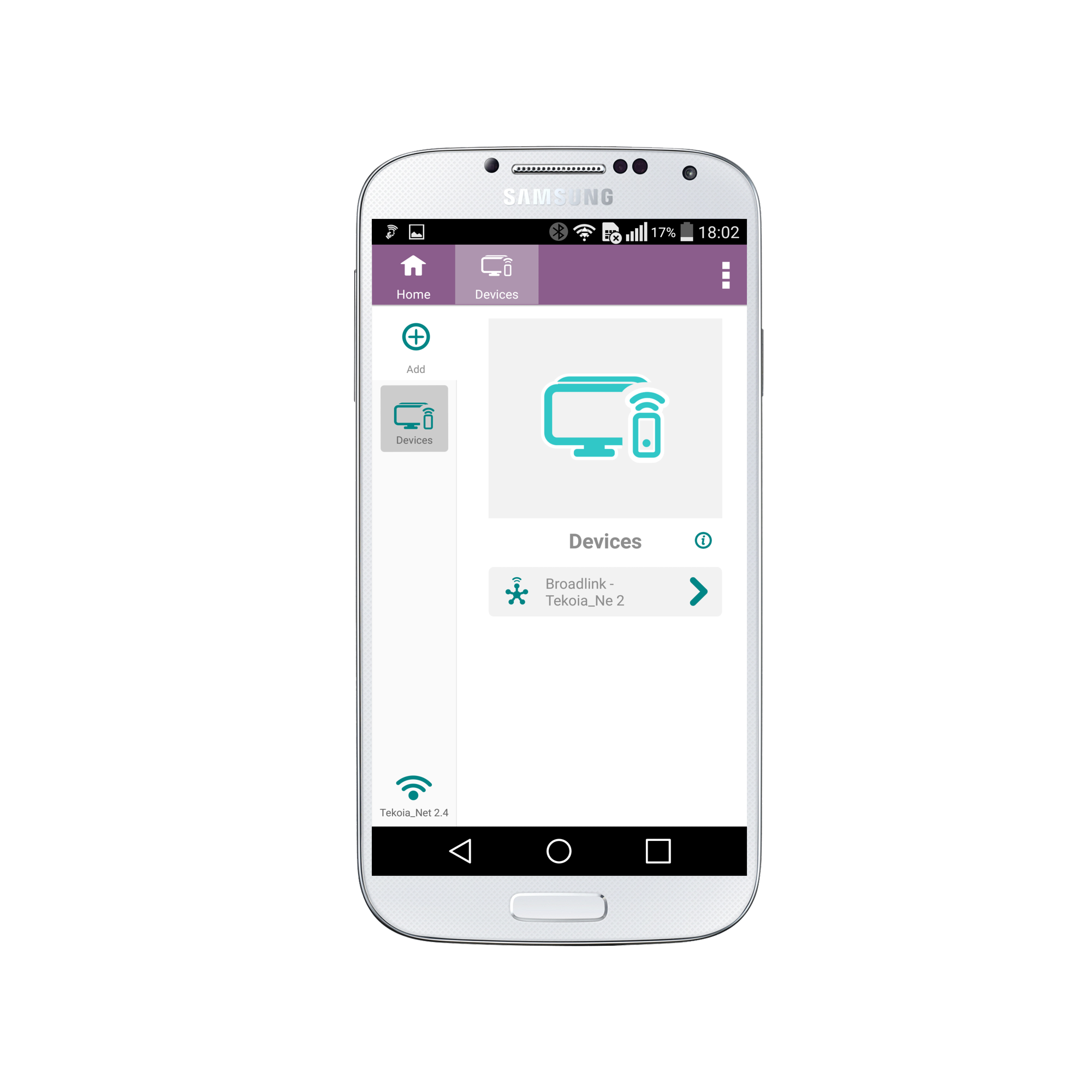
10. Congratulations! Your Broadlink Converter has now been added and you can begin to add IR devices.
Social
关注我们